- Theme support
- Porting metaboxes
- Notices
By default block provide their styles to the themes, without any change. Themes can also override the block styles, or not provide any styles and rely on the block styles.
Here are the theme support for blocks
- Editor Color Palette – A default set of colors is provided, but themes can register their own and optionally lock users into picking from the defined palette.
- Editor Text Size Palette – A default set of sizes is provided, but themes can register their own and optionally lock users into picking from preselected sizes.
- Responsive Embeds – Themes must opt-in to responsive embeds.
- Frontend & Editor Styles – To get the most out of blocks, theme authors will want to make sure Core styles look good and opt-in, or write their own styles to best fit their theme.
- Block Tools – Themes can opt-in to several block tools like line height, custom units.
- Core Block Patterns – Themes can opt-out of the default block patterns.
We can use the function add_theme_support to opt in for this features
add_theme_support('editor-color-palette', array(
		array(
			'name'  => esc_attr__( 'Saffron', 'screen-time' ),
			'slug'  => 'saffron',
			'color' => '#FF9933',
		),
		array(
			'name'  => esc_attr__( 'White', 'screen-time' ),
			'slug'  => 'white',
			'color' => '#FFFFFF',
		),
		array(
			'name'  => esc_attr__( 'Green', 'screen-time' ),
			'slug'  => 'green',
			'color' => '#138808',
		),
		array(
			'name'  => esc_attr__( 'Navy Blue', 'screen-time' ),
			'slug'  => 'navy-blue',
			'color' => '#000080',
		),
	));
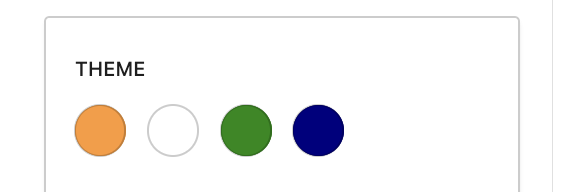
Theme.json file:-
Theme.json file contains style configuration for theme styles and blocks
The same thing we added above can be achieved by adding the styles into the theme.json files, and it is very convenient to do so.
All the style settings in theme.json get converted into css.
{
    "version": 2,
    "settings": {
            "blocks": {
                "core/paragraph": {
                    "color": {
                        "palette": [
                            {
                                "name": "Blue",
                                "slug": "blue",
                                "color": "#0000FF"
                            }
                        ]
                    }
                }
            }
        }
    }
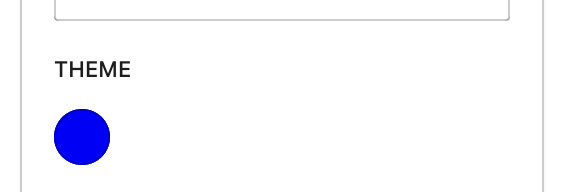
the theme.json file is written in JSON: JavaScript Object Notation
We can also use the schema provided by WordPress so in editor we get suggestions, to do this first get the schema from here
https://developer.wordpress.org/block-editor/how-to-guides/themes/theme-json/
We can use the key $schema for this
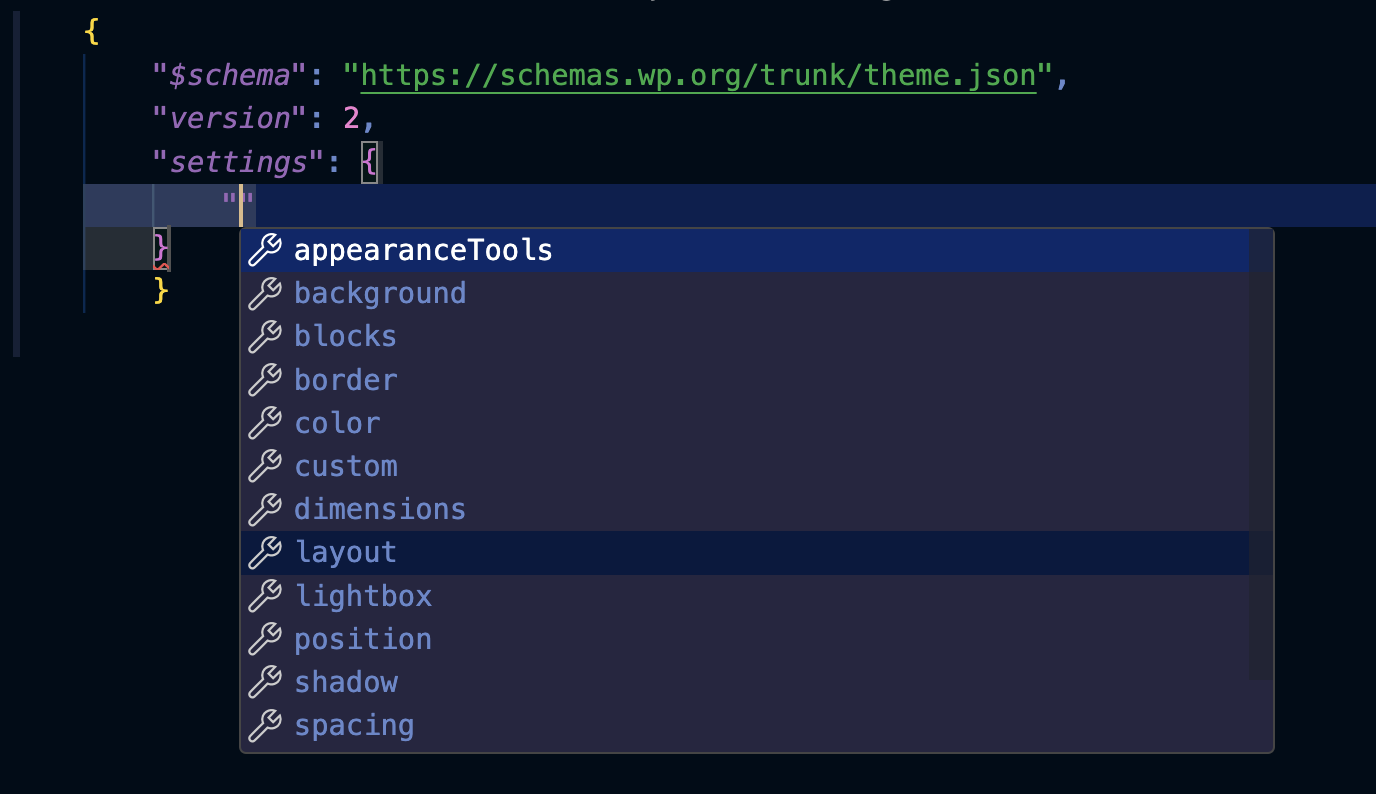
This really makes it easier and we don’t have to remember each and every setting in it .
Porting MetaBoxes
We can actually add metaboxes blocks in out posts, and save the metadata without any custom coding in the PHP (except for registering the meta)
First, in our plugin file, we have to register the meta field for that we can use the function register_post_meta
add_action( 'init', function () {
	register_post_meta( 'post', 'myfirst_meta_val', array(
        'show_in_rest' => true,
        'single' => true,
        'type' => 'string',
    ) );
});
Then, create a new block and register it also,
add_action('init', function () {
register_block_type(__DIR__ . '/blocks/build/myfirst');});
In our Index.js of block, we have to use the useEntityProp hook to CRUD the meta values, here is the full code
registerBlockType('myfirst/meta-block', {
	title: 'My First Meta Block',
	edit: () => {
		const postType = useSelect(
			(select) => select('core/editor').getCurrentPostType(),
			[]
		);

		const [meta, setMeta] = useEntityProp('postType', postType, 'meta');

		const metaFieldValue = meta.myfirst_meta_val;
		const updateMetaValue = (newValue) => {
			setMeta({ ...meta, myfirst_meta_val: newValue });
		};

		return (
			<div {...useBlockProps()}>
				<TextControl
					label="Meta Block Field"
					value={metaFieldValue}
					onChange={updateMetaValue}
				/>
			</div>
		);
	},
});
This might look little big at first, but it is very simple, first we are getting the current post type as it is required to query the postmeta and save the values.
Then we are using the hook useEntityProps to get the meta values of that post
And using TextControl with event handlers we are adding that post meta, here it is how it looks


Notices
Notices serve as informative user interface elements that appear at the top of admin pages. They are used by WordPress core, themes, and plugins to communicate the outcome of an action or to highlight important information to the user.
Everything in the block editor context is just simple, to add a notice to the block editor we can use the function createNotice
wp.data.dispatch( 'core/notices' ).createNotice(
        'error',
        'See this works too!',
        {
            isDismissible: true,
        }
    );
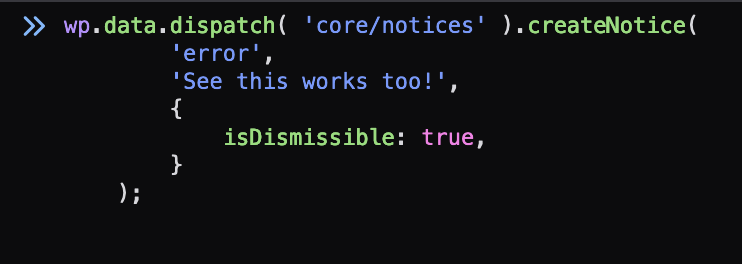

The notices can be of type success, info, warning, error.
The isDismissible attribute sets if the notice should be dismissible or not.
Leave a Reply