I had never thought from the perspective of a primitive user trying to put his blogs on the internet having no knowledge in coding or anything.
WordPress has made it very easy to build the site we want, the way we want it to be with little to no knowledge in coding.
What exactly is a website, even if we are trying to build something very unique its building blocks are already there. We can even create a full e commerce site and manage it using WordPress.
Gutenberg Block Editor
We can create posts and pages for our site using the block editor, it has almost everything we need to design a site. We can also extend the blocks available using plugins and themes.
Everything is made up of blocks, this paragraph, the image you see below
If you have some knowledge of coding you can even customize it more to your liking but mostly it is not necessary for many use cases.
Plugins
For our assignment, had to add a subscription form and contact us form in our site. Used NinjaForm Plugin to do that in minutes, just had to design the form and use its shortcode in the Gutenberg editor to put it on the site.
Plugins do really make it easier for us to do things on our sites, want the functionality of a social media site?, use BuddyPress. Want to create an e-commerce site? use WooCommerce, want to filter spam comments use Akismet.
Widgets
Widgets are components that add some functionality to your site, like a search widget that will allow users to search through content of your site, or a widget that makes call to an api and fetches latest movie ratings.
Widget to list all your posts or to select a date from calendar, all this features can be added with minimum to no code using widgets to out site.
Read The Docs
Its always better to read the documentation of the product you are using. Yeah, it is good if you learn by doing but knowing some things beforehand really makes it easy.
Summary:
Had a productive week, learned a lot of things (most of them from mistakes!).
I had shifted the dbless mail verification to database finally, but now how to automatically expire the records after few minutes. This is where I learned about mysql events.
MySQL Events are tasks that run according to a schedule, we can create events to be scheduled to run every 5 minutes or at a specific time.
DELIMITER //
create EVENT delete_verification_tokens
ON SCHEDULE EVERY 1 MINUTE
DO
BEGIN
  DELETE FROM verification
  WHERE addedAt < NOW() - INTERVAL 2 MINUTE;
END;
//
DELIMITER ;
this will delete rows from verification table that are 2 minutes older.
I wanted to test my application if it really works or not, I was using mailhog to capture the mails sent and read them from there.
the default mail() function in php does not support SMTP authentication so we are going to use an external library for this:
phpMailer:
install it using composer require phpmailer/phpmailer
<?php
use PHPMailer\PHPMailer\PHPMailer;
use PHPMailer\PHPMailer\SMTP;
use PHPMailer\PHPMailer\Exception;
require '../vendor/autoload.php';
require 'SubscribersDatabase.php';
require 'EmailController.php';

$database = new SubscribersDatabase();

$emails = $database->getAllEmails();
if (!$emails) {
    die();
}
$emailController = new EmailController();
foreach ($emails as $email) {
    $mail = new PHPMailer(true);
    $mail->SMTPDebug = SMTP::DEBUG_SERVER;
        $mail->isSMTP();
        $mail->Host       = 'host';
        $mail->SMTPAuth   = true;
        $mail->Username   = 'username';
        $mail->Password   = 'password';
        $mail->SMTPSecure = PHPMailer::ENCRYPTION_STARTTLS;
        $mail->Port       = 587;
        $mail->setFrom('pratik@githubtimeline.local', 'Admin');
        echo $email;
    $mail->addAddress($email);
    $subject = "Github Timeline Updates";
    $message = $emailController->getUpdateMail();
    $headers[] = "MIME-Version: 1.0";
    $headers[] = "Content-type: text/html";
    $mail->isHTML(true);                                  //Set email format to HTML
    $mail->Subject = $subject;
    $mail->Body    = $message;
    $mail->send();
}
To get a free 300mails/day SMTP acoount you can signup on to Brevo
WordPress Multisite
We can create multuple files using same wordpress installation, this feature is called wordpress multisite. We can manage separate websites from same dashboard.
Multisite allows us to manage plugins and themese differently for different sites added, we can also add site admins for different sites and delegate the site management to them
User Roles in WordPress
Below roles can be applied to users:
Subscriber
Contributor
Author
Editor
Administrator
Subscriber
can read posts
can access their profile
Contributor
can edit posts and delete posts
Author
Create new posts, publish them, edit posts, delete posts
can upload files
Editor
publish new pages and posts
edit and delete pages and posts
manage categories
upload files
Administrator
manage plugins and themes
manage users
manage files
manage posts and pages
delete site
When we are using multisite super admin role is there, super admin can:
manage sites
manage network
Overall wordpress is a really powerfull tool that we can use to create our own sites having little to no knowledge about coding websites. The marketplace has plenty of themes and plugins that we can choose from, if we don’t like them we can create our own using block editor.
Forgot to add a file to .gitignore and commited the changes?, well even if you delete it in next commit, anyone can see that file in the commit history.
If the file contains some sensitive information and you pushed the repo to public, it is going to be hard time for you, as removing the file becomes near impossible if anyone has already cloned the repo.
What to do now?, well change all the credentials exposed in the file, remove the file from future commits.
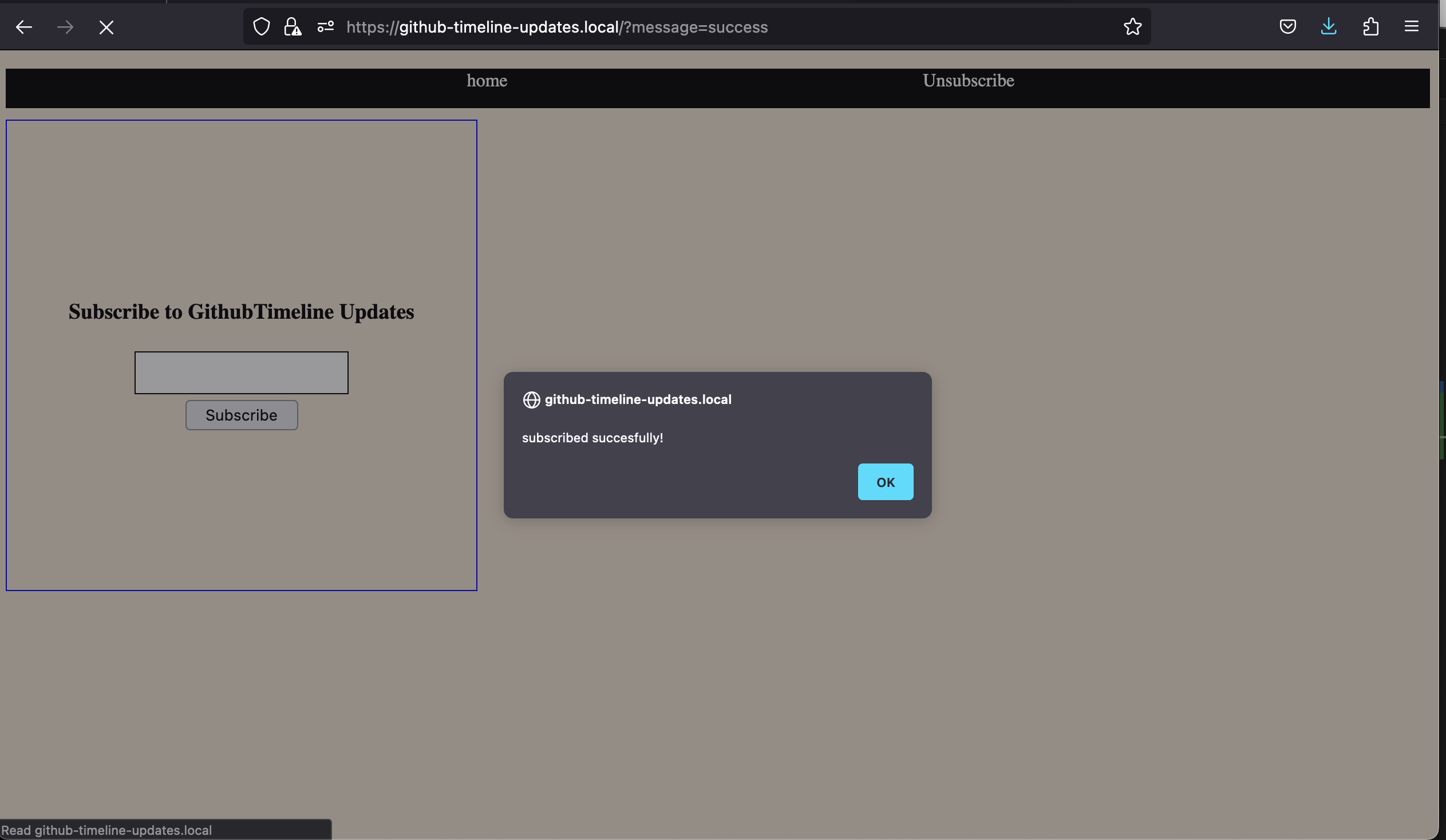
In our php assignment, we had to take email from user, send him verification link, send updates, let him un-subscribe. In all this, we had a form with one input field and one button.
Initially, I created different php pages for each of these operations. I was not really happy with this arrangement as the code became so complex for me to manage.
I have worked with django framework before and it has this functionality using which we can embed python variables and few directives inside the html.
I just wanted to come up with something like that, after research (just googling things) I found this huge 1000 slides presentation that was presented by james bannet in pycon , the video is here .
I didn’t watch the whole of it only when he explained how the django internally renders template, and decided to make one for my own project.
<?php
/**
 * Very Simple Template Engine
 *
 */
class TemplateEngine
{
    public function render($template_name, $context = null)
    {
        //find the file
        //get the file as string
        $template = file_get_contents("templates/" . $template_name);

        //if context is null no need to render, just return
        if (!$context) {
            return $template;
        }

        //get the tags that start {{ and end with }}
        $pattern = "/{{\s([^{}\s]+)\s}}/";
        preg_match_all($pattern, $template, $matches, PREG_PATTERN_ORDER);

        //create dictionary of patterns and variables
        $patternsMatched = $matches[0];
        $variableNames = $matches[1];
        $matches = array_combine($patternsMatched, $variableNames);

        // replace tags with data from the context
        foreach ($matches as $pattern => $var) {
            $template = str_replace($pattern, $context[$var], $template);
        }

        //return the template as string
        return $template;
    }
}

?>
This is the whole code, with only function to render the html template.
This is how it works :
It takes tow parameters : name of the template and context
The context variable should have all the data necessary for the template
The regular expression finds all special tags like {{ email }} , then it iterates thorough all of them replacing the tags with their actual value from the context variable.
Staged : The files has been added to git but the changes are not committed yet
Committed : changes are commited
By running git status in terminal we get status of our current directory, (a git repo must be initialised before using git init).
It shows info like which files are not tracked, which files are staged
You can add files to staging area using git add [filename] or git add . to add all files
Finally we commit the changes we have made and also put a message explaining what we did and why we did it using
git commit -m "message"
How to add content to wordpress
wordpress is a CMS(content management system), we can create posts on it and publish them as our daily blog, or use for documentation of our software or even create a portfolio for ourselves showcasing our skills.
Two ways to add content to wordpress :
creating pages
Creating posts
Pages: We create pages to display content that is not going to change or rarely change on our site, like a home page for our site.
Posts: Posts are for sharing updates, like writing blogs and are time relative, we keep creating new posts to update our site.
When we are developing a web application, we want it to be able to share it with other people also, otherwise it’s just code sitting in out computers. In rtcamp we are given access to a remote server so we can upload our applications there and make them available to the world.
How to transfer the project files from your local machine though ?
rsync : It is a command line utility using which we can upload files from our local machine to remote or download them into our local machine from remote
Syntax for rsync basic transfer operation is :
`rsync [source]  [destination]`

example `rsync /user/victor/sites/getit 34.56.43.33:/opt/easyengine/sites/getit`
This uses SSH to remote server and we can sync the files from source to destination. Read more here.
This is not really efficient as every time we make changes in our site we have to rsync it, how about we automate this process ?
This is where github actions and workflow comes in play, github actions allow us to run workflows like running tests, inspecting code and also deploy the code on server or anything we want to do once a specific action is performed on github.
Github actions can be events like push to branch, pull requests etc.
To write a workflow, create a folder inside your repo named .github, inside it add new folder workflow
create a new file inside .github, named hosts.yml
deployment:
  user : username
  hostname : remote server address
  deploy_path : path/to/your/server/folder
Then create a new file inside workflows folder name it anything like deploy_on_push.yml
Now, everytime you push changes to the deploymemt branch on github, it will automatically deploy it on the server, no need of manual intervention.
Fixing key not found error:
When using github actions to deploy our code on the server we are using SSH to connect to the server.
To connect to server via SSH we need SSH key, when I first just followed the tutorial form the course to do this but the error in the github actions was failing the workfloe run.
For this, I read this documentation again and again and found a way to add secrets to a repository from CLI using github CLI.
First install the github cli using homebrew :
brew install gh
Then go to you project repo and type this command :
gh secret set SSH_PRIVATE_KEY > ~/.ssh/id_ed25519
press enter, now the key error should be fixed.
Learning WordPress
To be able to work on wordpress development, we have to first get experience how a user might use it, for that we have dedicated one week just to learn about using wordpress.
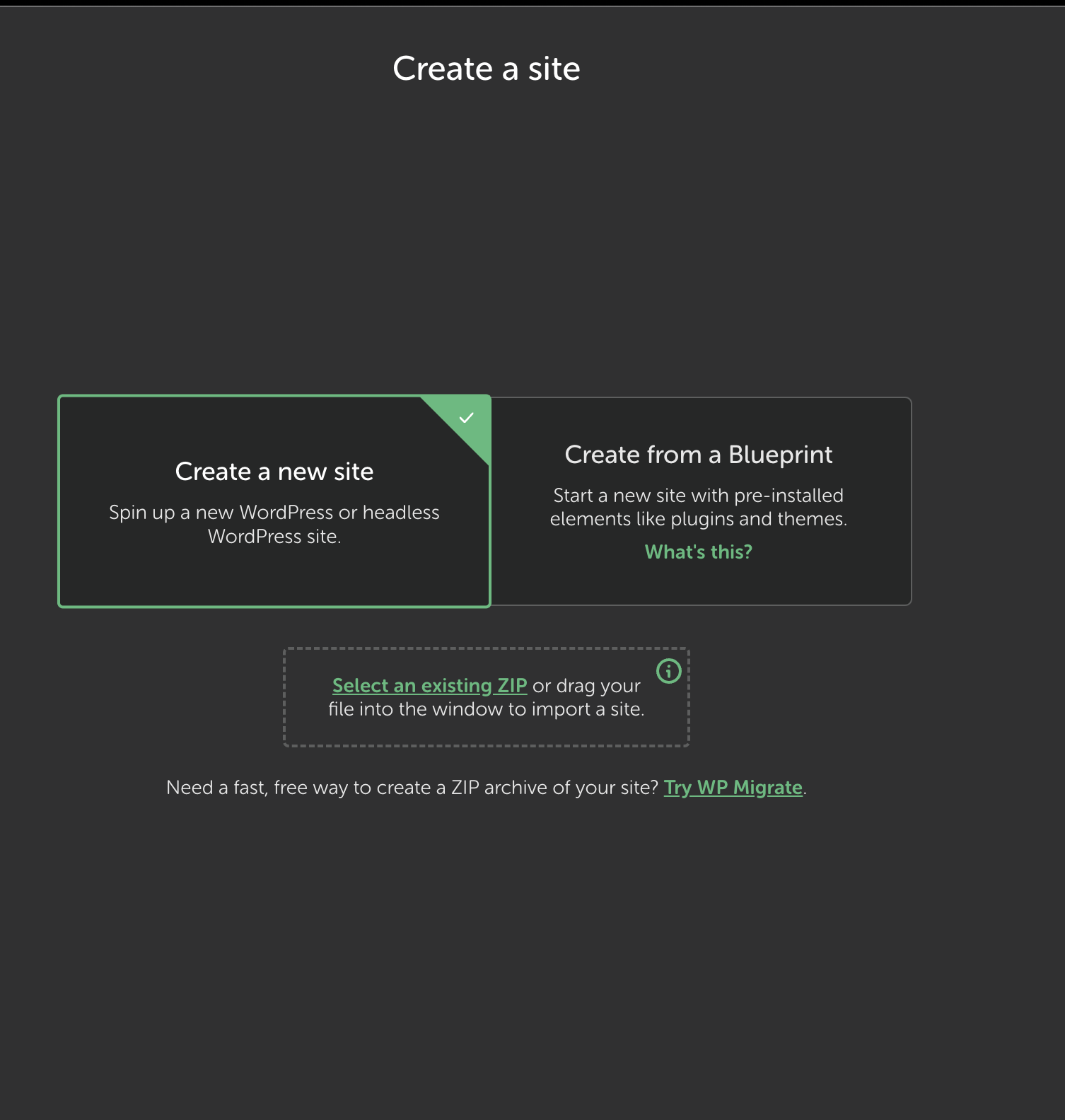
We can start by locally installing wordpress using local wp and creating a new site on it.
WordPress has very in depth documentation for users on how to use it to manage sites, themes, customization, administration and also how to install plugins.
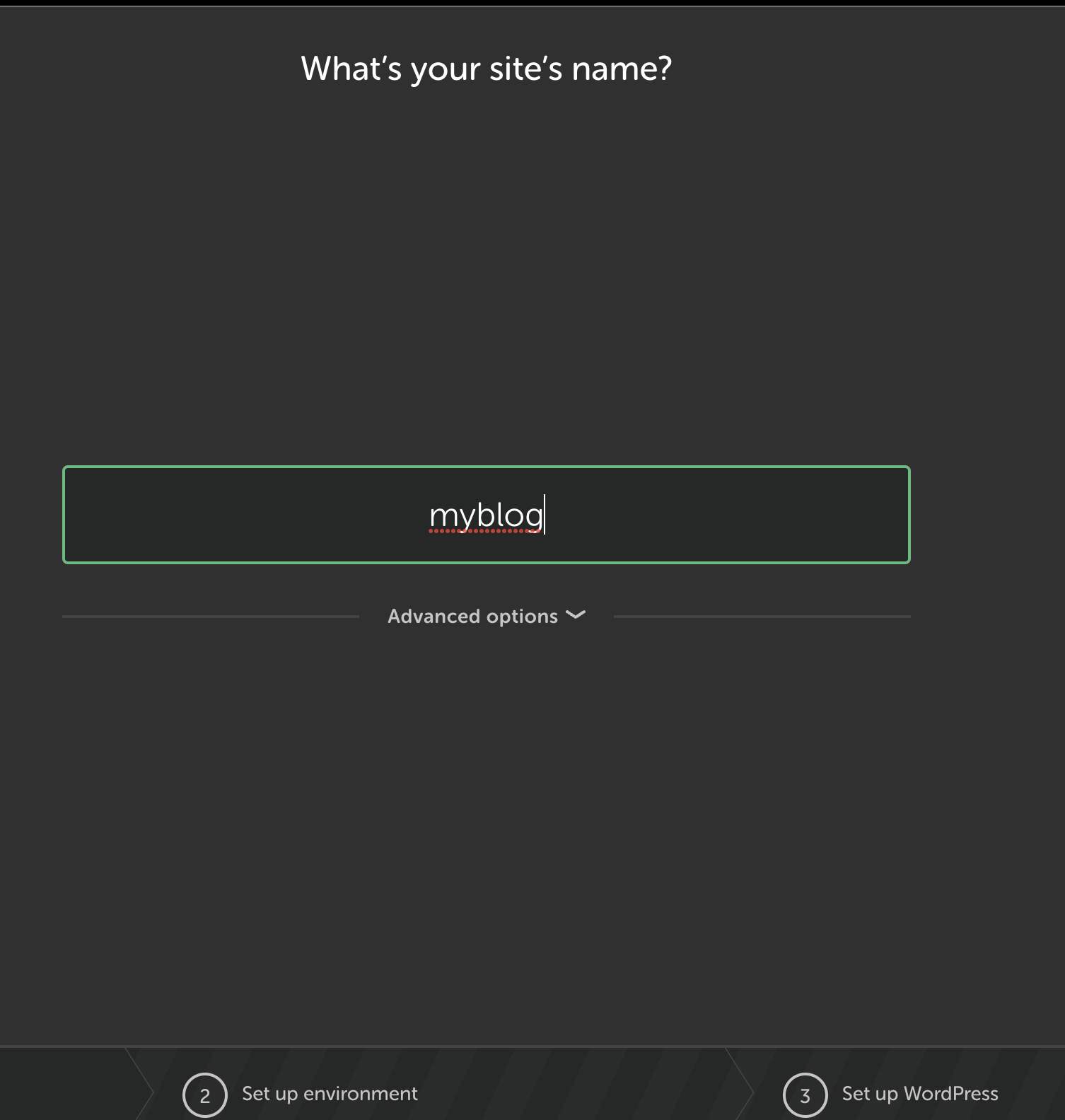
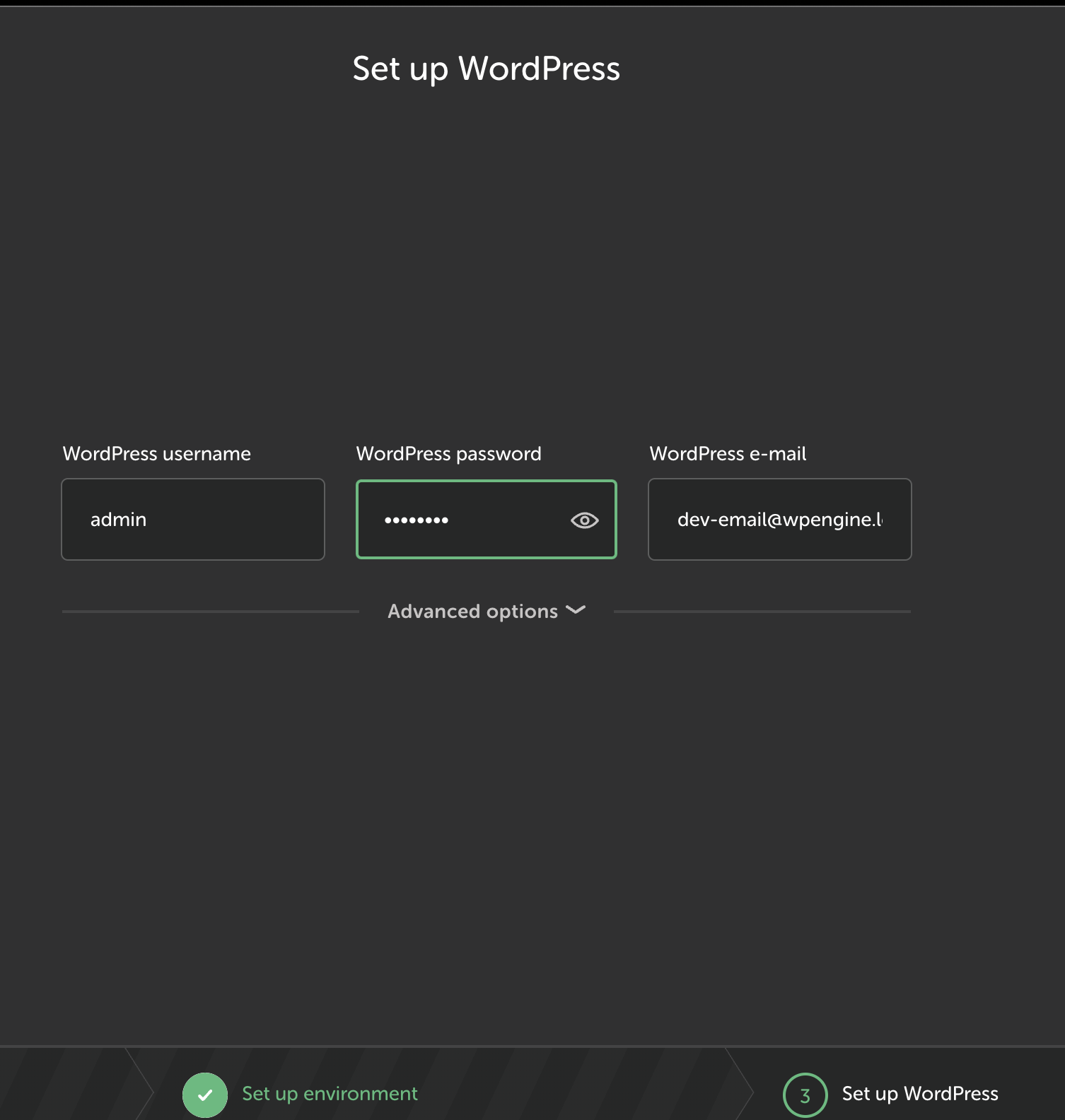
How to create a wordpress site using local wp?
Click on the green + button at the left bottom corner of local wp window
After this, a new site will be created for you with wordpress installed on it.
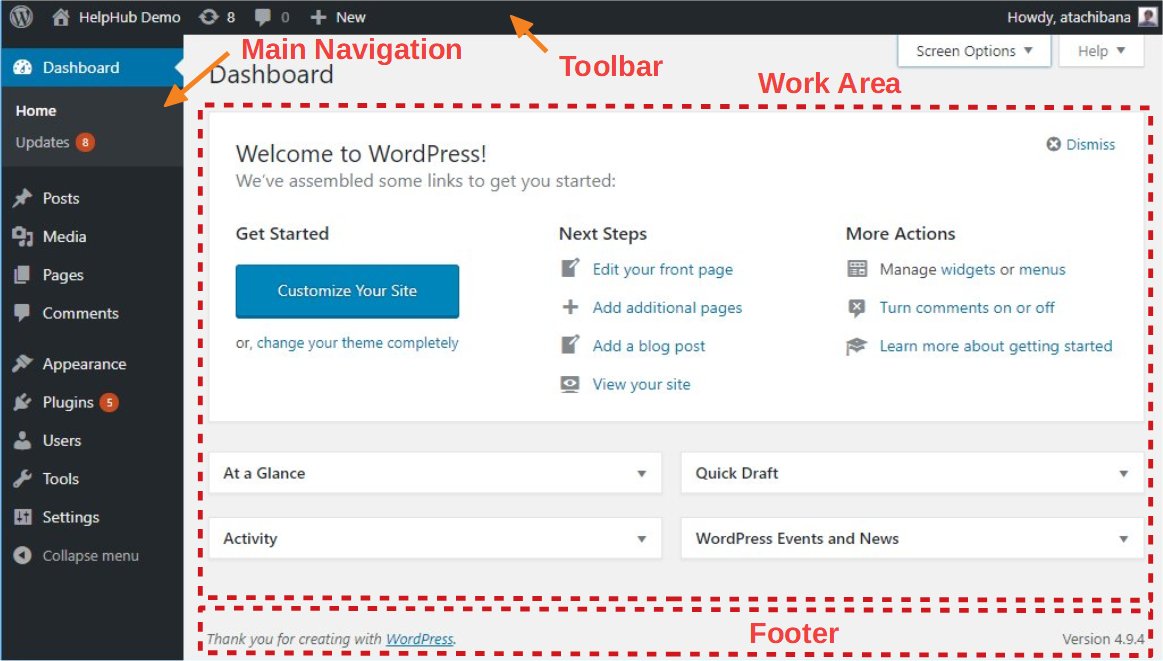
The admin Dashboard
The main dashaboard has following widgets :
Welcome :
Displays link to learn about the version of wordpress.
links to common task like creating new page or customizing the theme.
Site Health Status :
Shows how the site is doing, if the performance and security is good, also suggests what to do to improve it.
Activity :
Shows recent activities in your site like recent posts and comments
Quick Draft :
We can use it to write a draft quickly to be published or to use later
it also shows other drafts we have written
At A Glance :
Shows info like how many posts we have, how many pages we have.
Displays wordpress version and current active theme
WordPress Events and News :
We can see info about wordpress events scheduled near our location.
We can also click on meetups link to see wordpress meetups.
Today I learned details about the admin dashboard in wordpress, and tools in the wordpress.
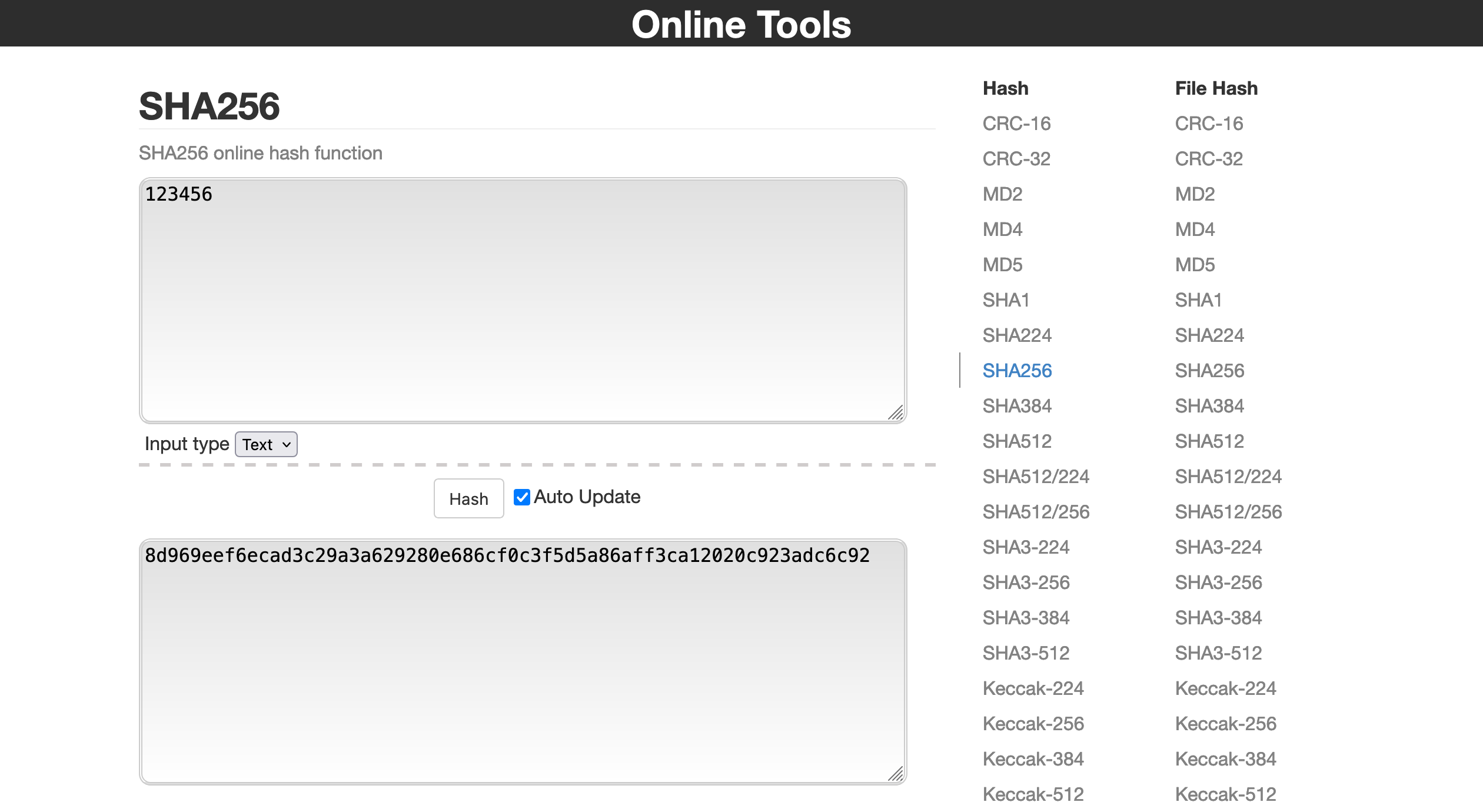
As discussed in earlier blog, I have used cookie for verification of email address, but doing so I overlooked major flaw in this which will store the email address as verified without having the correct code.
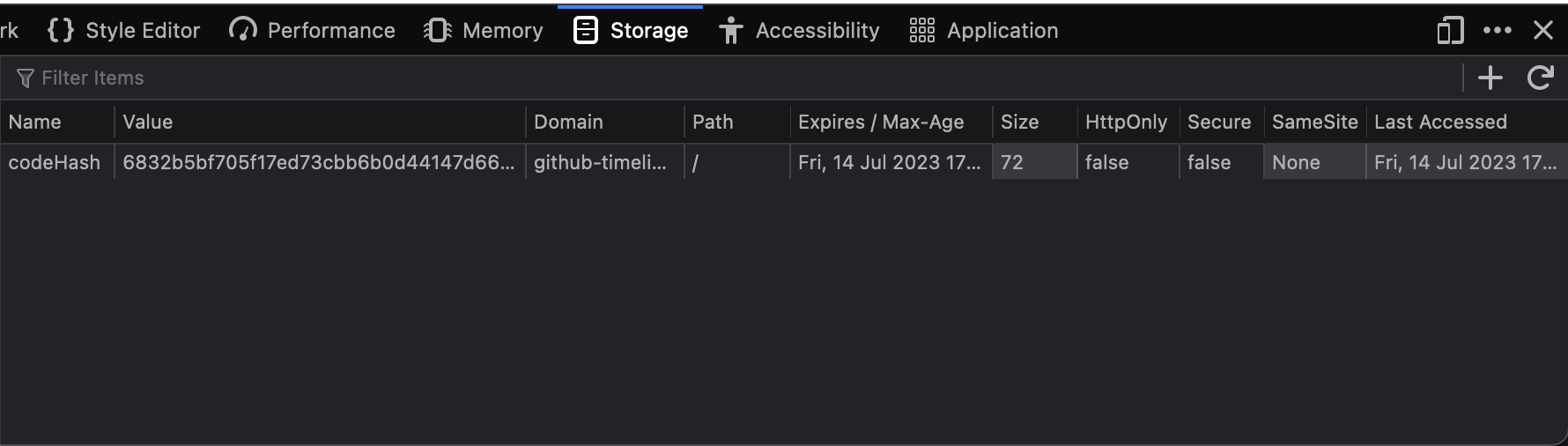
2. Enter email on the subscribe form, then open dev tools, go to cookie storage:
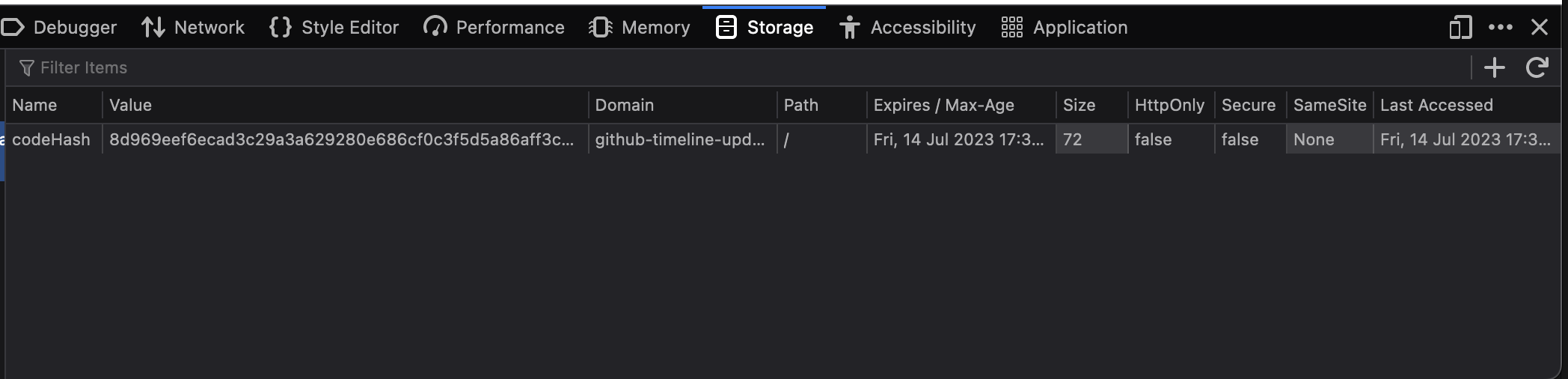
3. You can see the `codeHash` cookie here, edit the value of the cookie and paste the copied hash there.
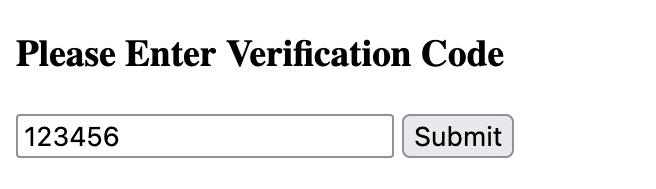
4. Input the random text or code you used to create the hash into the form
5. After clicking submit, we are able to register the user without having access to their email at all, from just front-end.
Instead of jumping to using cookies I should have researched more and used sessions, which are stored on the server side and can not be edited by user for this.
Using PlainText File as Database
It took me longer than expected to setup the environment which made less time available for actual development.
We had to get email address from users and store them, in hurry I just used file operations in php to store the address.
To check if an email exists or not or to delete an email it had to read the whole file again, search through each email address and find it and then remove it if delete operation was requested.
Unfortunately plain text files don’t have indexes and stuff to make this operations easy to do, fortunately I had abstracted the functionlity to get,add and delete mails using OOP and had very little refactoring to do to use mysql DB
<?php
require "Database.php";

class SubscribersDatabase
{

    // db connection
    private $conn;

    public function __construct()
    {
        $dbCon = new DatabaseConnection();

        $this->conn =  $dbCon->getConnection();
        if(!$dbCon) {
            echo "db error";
        }
    }

    public function getAllEmails()
    {
       //logic to get all emails

    }

    public function emailExists($email)
    {
        //logic to check if email already exists

    }

    public  function addEmail($email,$verified)
    {
         //logic to add new email to db
    }

    public function removeEmail($email)
    {

        //logic to delete email

    }
}

?>
What i learned from this : think very thoroughly when using plain files to store data, it may seem tedious to setup and use database but always better choice than plain files.
foreach loop and mail()
The getEmails() function return an array with all the email addresses to which we have to send updates.
I used foreach loop to go through each email, and send updates using mail() function in php.
foreach($emails as $email){
    // ...remainder code
   mail($email, $subject, $message);
}
After going through the documentation of mail(),
It is worth noting that the mail() function is not suitable for larger volumes of email in a loop. This function opens and closes an SMTP socket for each email, which is not very efficient.
Summary : Today I learned site security, error handling, why pleasant ui is must for a site and also self evaluated myself on how I code and what to improve on moving forward
So, how to verify and store email without actually using any database, you need a way to securely store the sent verification code and also verify the user input code.
We have to store the code on the client side in the cookie securely, but cookies are not secure and can not be used to store sensitive info. My solution for this is to
Hash the code, and store only the hash in the cookie
Get code from user in a form, hash it using the same algorithm and only compare the hashes for match.
This approach will make it secure to store verification code on the client machine
Note : This is not the best solution possible, We can also send user an link to the verification. (will be testing this method also)
crontab is a command line utility in unix systems allowing users to schedule jobs to be run at specific time.
How to add a cron job in your local system?
To add a cron job, we can to use crontab
crontab -e : this will open a file in the vim editor to add your new cron job
The format for adding fron job is as shown below
*    *    *    *    *   /home/user/bin/somecommand.sh
|    |    |    |    |            |
|    |    |    |    |    Command or Script to execute
|    |    |    |    |
|    |    |    | Day of week(0-6 | Sun-Sat)
|    |    |    |
|    |    |  Month(1-12)
|    |    |
|    |  Day of Month(1-31)
|    |
|   Hour(0-23)
|
Min(0-59)

copied from [cronitor.io]
If we want to schedule a job to be run every 5 minutes we can use following expression */5 * * * * run.php
‘*/n’ is used to add step value so it can run every n interval.
I used crontab.guru to learn more about the time expression and how to use it.
press i to go into insert mode in vim.
type your cronjob */5 * * * * run.php
press escape to get out of vim
type :wq to write and quit vim
It will give output as crontab: installing new crontab in the terminal.
Ok, we now know how to schedule a cron job but how to make it so that the send updates functionality on our server is being called properly?
I tried first run the script using php script.php from the terminal, it was running without error but the mailghog was not capturing the mail.
As we are running this php script standalone and not on the server, that’s probably why the mailhog couldn’t capture the sent mails.
the curl utility : it is used to send http requests to webservers from command line, that’s exactly what I wanted.
I updated the cron job with curl and got it to capture mails in mailhog.
Stub for SendMail functionality
As we want the sent mail to look better, I am sending html mail, we can format the mail how we want to and also make it easy for the user to understand it better
Sending HTML mail from php
I am using inbuild mail() function to send mail to the user
We have to set appropriate headers in order to be able to send a HTML email
Today I spent most of the day setting up the development environment and troubleshooting.
Familiarizing with CLI
I did most of the work like installing libraries, required modules and stuff on CLI today. It took me a little bit of more time than expected to get handy with the terminal. I learned about how to create and delete directories from terminal itself.
Commands I learned
ssh-keygen : I used this command to generate SSH keys for github authentication
ssh-add : to add the created keys to the SSH agent of my local machine I used this command
open -a textedit : I found this command so I can open the public key in text editor and copy it to github
rm -rf : Used this command to delete the app directory
git clone : used this to clone the repo for assignment
mkdir : create public directory in app using this
Fixing site creation error in local WP on MacOs
Yesterday when I installed the local WP, i tried to create new site multiple times but it was giving error, I couldn’t solve it myself so I asked for help on the gh discussions and got the solution.
the local wp has some issues with compatibility with the mac silicon m2 chips so I had to install “Rosetta”
Rosetta is a dynamic binary translator developed by Apple Inc. for macOS, an application compatibility layer between different instruction set architectures. It enables a transition to newer hardware, by automatically translating software
wikipedia.org
Preparation for the quiz
I revised procedural php concepts and HTML, as I am not very good at CSS today I gave extra time to learn CSS from the scratch. I glanced thorugh my MySQL cheatsheet for quick overview.
Assignment inception
We are given an assignment as a part of our engineering basics course to create a plain php application that takes user email and sends them github timeline updates every 5 minutes.
I don’t have much experience with the php so today I will design the application, learn all the prerequisites to create such application and start working on the solution ASAP.
Today was nice, I am slowly getting how to use the mac and get comfortable with it.
Today we learned about how the whole training is going to be conducted by the L&D department. We were assigned to pods and pod leaders. An outline of all the courses scheduled in the 12 weeks time was also shared by the team.
We are now enrolled in few courses on the rtcamp LMS, that we have to complete in the given time, also we were added to the rtcamp github team and the repo to upload our assignments.
We had a brief meeting about systems overview in which some tools like ssh, rsync and commands were explained. Also we learned little bit about easy engine, CI/CD and workflow.
we kick started our learning today and tomorrow we have quiz on the programming languages!
Today I had my first day at rtCamp, I was really excited to join as this is my first job. I am working remote from day 1, that is also awesome.
First day started with an on-boarding meeting in which we setup our new devices with new accounts and software. after that we had to complete some tasks to complete the joining process. We also had meeting with L & D department regarding training and schedule.
Highlights
No Sir/Mam
In rtcamp we are encouraged to call everyone by their names, no matter the seniority(Even the CEO). It is not only discouraged but also frowned upon to call someone sir or mam.
Round Table
RT in rtcamp stands for round table, you can ask questions, share feedback, suggestions and all are treated equally no matter what your position is.
I had informal meeting with my rtBuddy. rtBuddy is someone who helps new joiners in the process and answers their questions. Finished my day with having everyone in the team introduce themselves, I also got to introduce myself. First day at rtcamp was good, and I am excited for tommorow!