- CI/CD setup for project
- Fixing the key not found error
- Learning wordpress
CI/CD setup for project
When we are developing a web application, we want it to be able to share it with other people also, otherwise it’s just code sitting in out computers. In rtcamp we are given access to a remote server so we can upload our applications there and make them available to the world.
How to transfer the project files from your local machine though ?
rsync : It is a command line utility using which we can upload files from our local machine to remote or download them into our local machine from remote
Syntax for rsync basic transfer operation is :
`rsync [source]  [destination]`

example `rsync /user/victor/sites/getit 34.56.43.33:/opt/easyengine/sites/getit`
This uses SSH to remote server and we can sync the files from source to destination. Read more here.
This is not really efficient as every time we make changes in our site we have to rsync it, how about we automate this process ?
This is where github actions and workflow comes in play, github actions allow us to run workflows like running tests, inspecting code and also deploy the code on server or anything we want to do once a specific action is performed on github.
Github actions can be events like push to branch, pull requests etc.
- To write a workflow, create a folder inside your repo named .github, inside it add new
folder workflow - create a new file inside
.github, namedhosts.yml
deployment:
  user : username
  hostname : remote server address
  deploy_path : path/to/your/server/folder
Then create a new file inside workflows folder name it anything like deploy_on_push.yml
on:
  push:
    branches:
      - deployment

name: Deploy and Slack notification

jobs:
  deploy:
    name: Deploy
    runs-on : self-hosted
    steps:
    - uses: actions/checkout@v2
    - name: Deploy
      uses: rtCamp/action-deploy-wordpress@master
      env:
        SSH_PRIVATE_KEY: ${{secrets.SSH_PRIVATE_KEY}}
        WP_VERISON: 5.8
    - name: cleanup
      if: ${{ always() }}
      uses: rtCamp/action-cleanup@master
- You can learn about github actions from here
Now, everytime you push changes to the deploymemt branch on github, it will automatically deploy it on the server, no need of manual intervention.
Fixing key not found error:
When using github actions to deploy our code on the server we are using SSH to connect to the server.
To connect to server via SSH we need SSH key, when I first just followed the tutorial form the course to do this but the error in the github actions was failing the workfloe run.
For this, I read this documentation again and again and found a way to add secrets to a repository from CLI using github CLI.
- First install the github cli using homebrew :
brew install gh - Then go to you project repo and type this command :
gh secret set SSH_PRIVATE_KEY > ~/.ssh/id_ed25519 - press enter, now the key error should be fixed.
Learning WordPress
To be able to work on wordpress development, we have to first get experience how a user might use it, for that we have dedicated one week just to learn about using wordpress.
We can start by locally installing wordpress using local wp and creating a new site on it.
WordPress has very in depth documentation for users on how to use it to manage sites, themes, customization, administration and also how to install plugins.
How to create a wordpress site using local wp?
Click on the green + button at the left bottom corner of local wp window
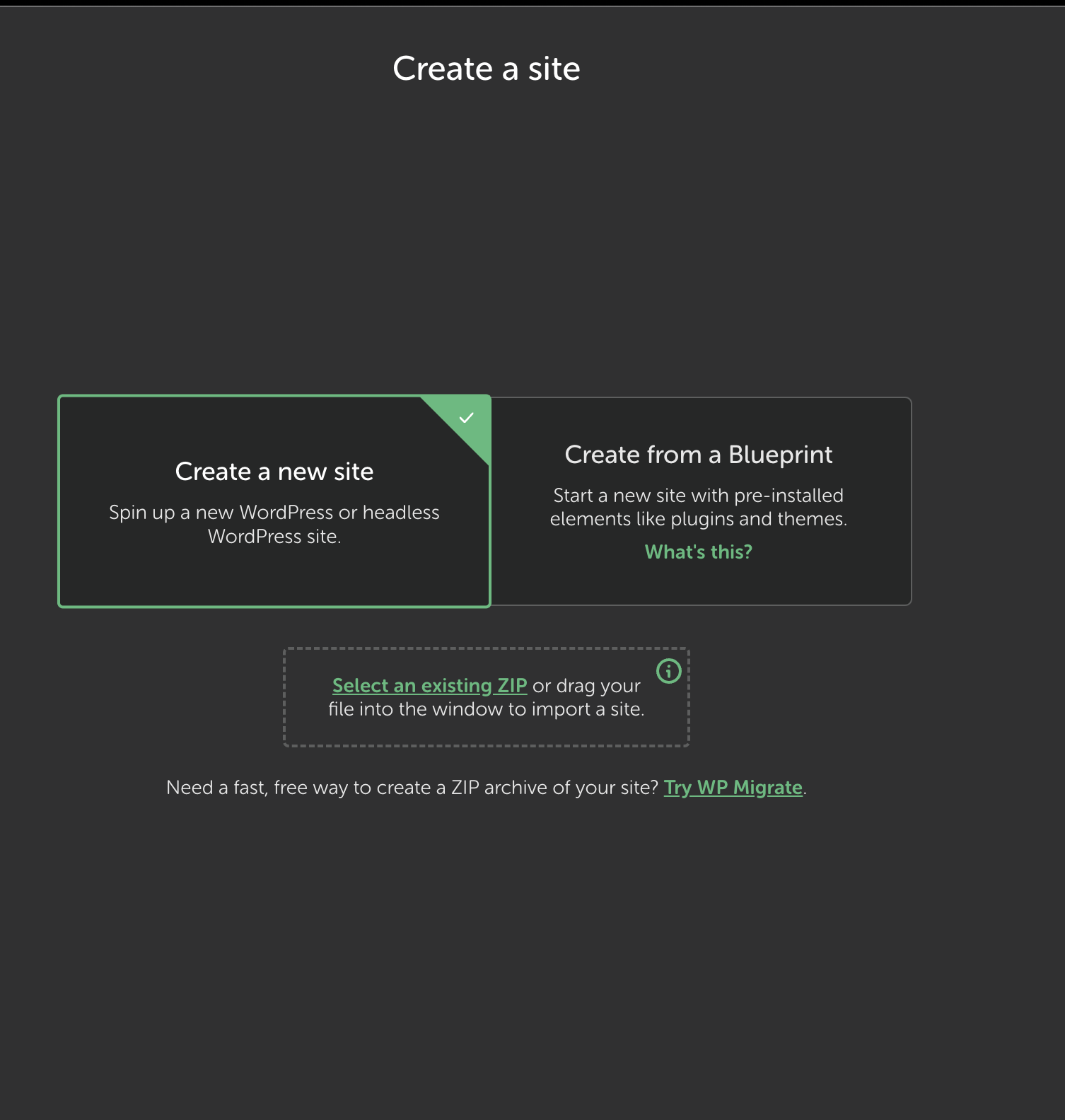
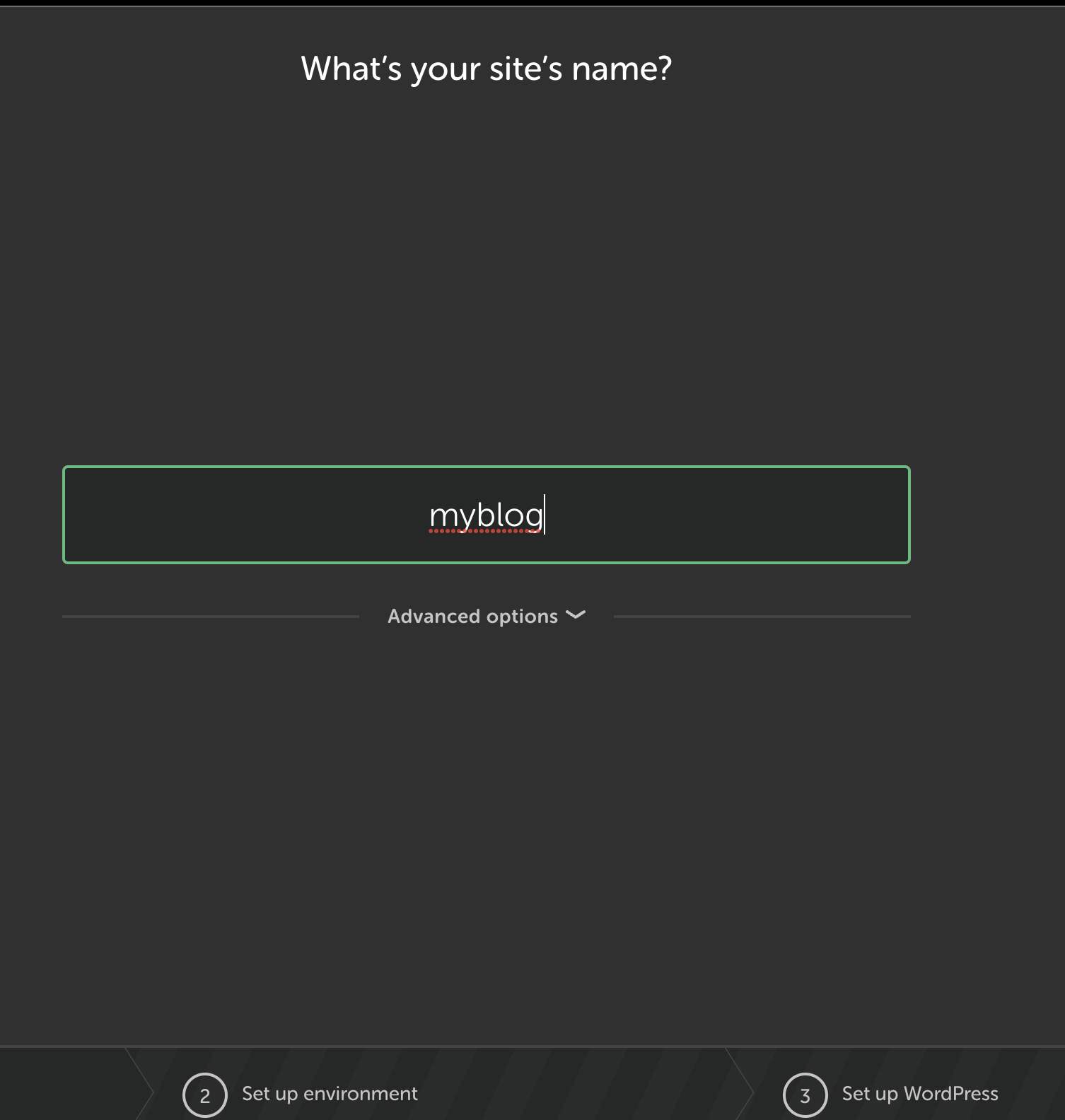
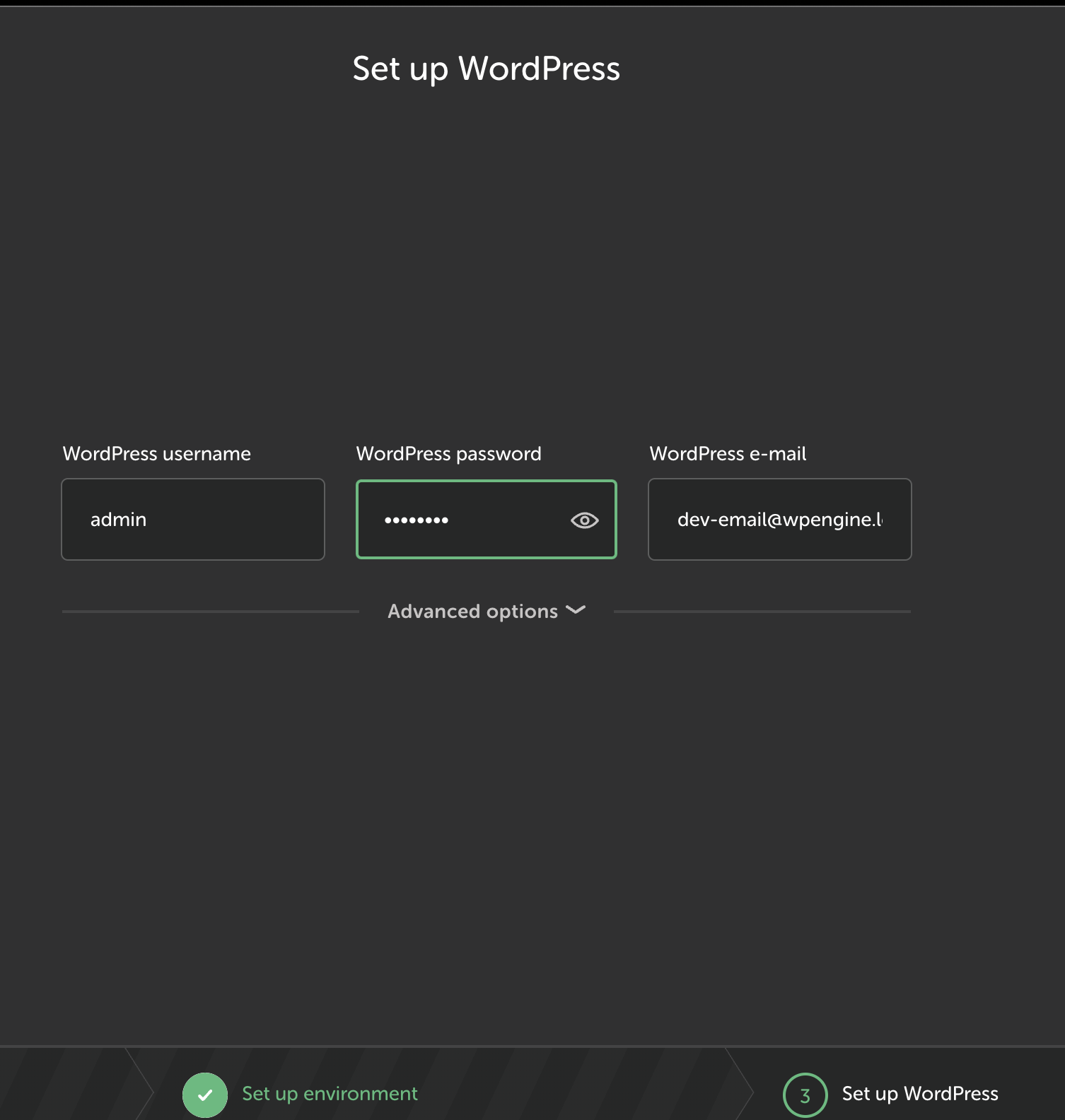
After this, a new site will be created for you with wordpress installed on it.
The admin Dashboard
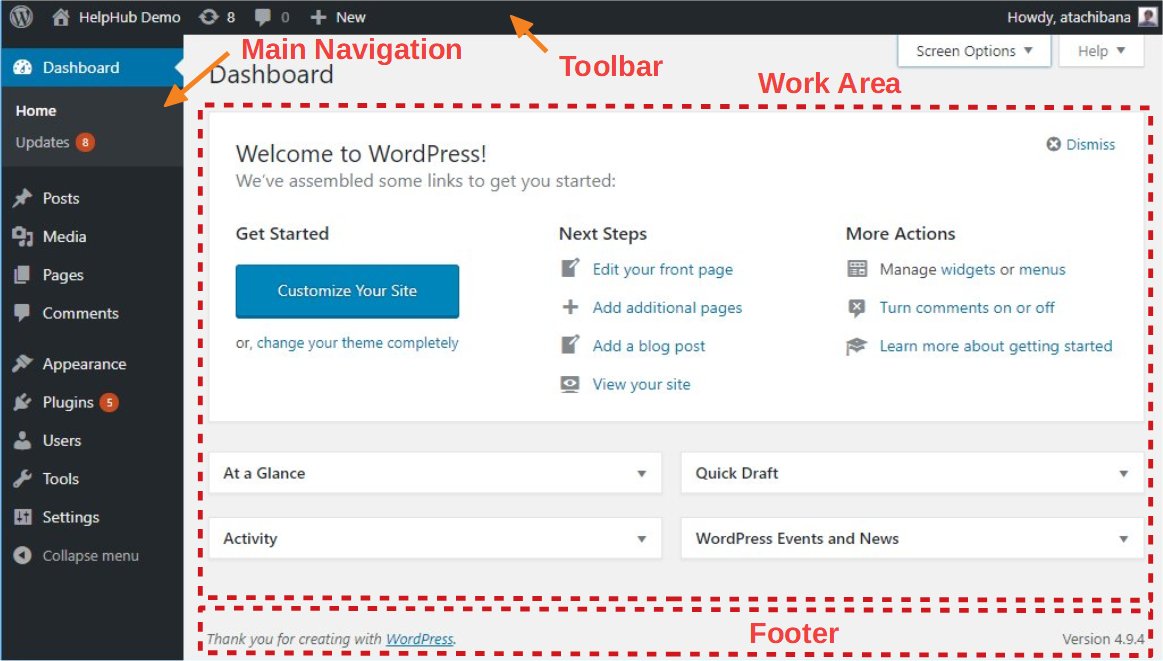
The main dashaboard has following widgets :
- Welcome :
- Displays link to learn about the version of wordpress.
- links to common task like creating new page or customizing the theme.
- Site Health Status :
- Shows how the site is doing, if the performance and security is good, also suggests what to do to improve it.
- Activity :
- Shows recent activities in your site like recent posts and comments
- Quick Draft :
- We can use it to write a draft quickly to be published or to use later
- it also shows other drafts we have written
- At A Glance :
- Shows info like how many posts we have, how many pages we have.
- Displays wordpress version and current active theme
- WordPress Events and News :
- We can see info about wordpress events scheduled near our location.
- We can also click on
meetupslink to see wordpress meetups.
Today I learned details about the admin dashboard in wordpress, and tools in the wordpress.
Leave a Reply