Author: Pratik Londhe

  • day 56

    @wordpress/element

    The element package provides an abstraction layer over react, we can use it the same way we use react but it is specifically for WordPress.

    It has similar API just like react,

    The edit and save functions:-

    var registerBlockType = wp.blocks.registerBlockType;
    
    registerBlockType('mlb/myfirst', {
    	edit: function () {
    		return "edit";
    
    	},
    	save: function () {
    		return "save";
    	}
    });
    

    The edit function should return a react element that will be displayed on the editor

    The save function should return a react element that will be displayed on the front-end

    Dynamic Blocks

    Dynamic blocks are blocks that build their structure and content on the fly when the block is rendered on the front end.

    The dynamic blocks save functions returns null so that only the block attributes are stored in the database, the backend callback handles the actual rendering of the data.

    We can give the render callback when registering the block

    register_block_type(
        __DIR__ . '/notice',
        array(
            'render_callback' => 'render_block_core_notice',
        )
    );


    Properties that can be added to block.json file for adding block metadata

    API Version : The version of the Block API used by the block. The most recent version is 3 and it was introduced in WordPress 6.3.

    Name

    { "name": "mlb/myblock" }

    The name for a block is a unique string that identifies a block. Names have to be structured as namespace/block-name, where namespace is the name of your plugin or theme.

    Title:

    Title of the block, this will be displayed in the editor

    { "title": "Movies" }

    Category:

    This describes in which category the block belongs to, below are in built categories

    • text
    • media
    • design
    • widgets
    • theme
    • embed
    { "category": "text" }

    Icon

    An icon property should be specified to make it easier to identify a block. These can be any of WordPress’ Dashicons (slug serving also as a fallback in non-js contexts).

    { "icon": "video" }
    
    block attributes

    Block attributes provide information about the data stored by a block. For example, rich content, a list of image URLs, a background colour, or a button title.

    A block can contain any number of attributes, and these are specified by the attributes field – an object where each key is the name of the attribute, and the value is the attribute definition.

    The edit function of our block is passed those attributes which we can access and use to render the block, for example:-

    registerBlockType('mlb/myfirst', {
    	edit: function ({attributes }) {
    		return "edit : " + attributes.title;
    
    	},
    	save: function () {
    		return "save";
    	}
    });
    

    how to use styles and stylesheets?

    We can add inline style to the block edit function directly, but we will have to repeat the same for save function also!

    The better approach to this is to enqueue the styles and also use the class names in our blocks, to enqueue the style sheet we can add it in the block.json file.

    Use the editorStyle property to a CSS file you want to load in the editor view, and use the style property for a CSS file you want to load on the frontend when the block is used.

    {
        "editorStyle": "file:./editor.css",
        "style": "file:./style.css"
    }


    Block Supports

    Block supports can be added in the block.json file, there are a lot of inbuilt core customizations that our block can opt in for, we can use them.

    "supports": {
            "color": {
                "text": true,
                "background": true,
            }
        }
    

    This will add support for text color, background color etc.

    This is really helpful when we want to offer this customization in our block but don’t want to duplicate the code used for this.


  • blocks in WordPress

    • What is a Block ?

    In the new Gutenberg editor of WordPress, the blocks are units by using which a webpage is created.

    Everything from a paragraph, to a video, to the site title is represented as a block.

    If we look at how the posts are stored by opening the html of this page,

    This is how it looks, but when rendered it looks very different than this!,

    The HTML comments are used to parse the block and display the actual HTML, but to store this in database they are serialized like this.

    Let’s take example of the paragraph block, it is written as

    <!-- wp:paragraph -->
    <p> Something something </p>
    <!-- /wp:paragraph -->

    This is the serialized version of the paragraph to be stored in the database, but for it to render in the editor, we convert it into an array of objects which is stored in the memory.

    Each block has edit function, that will return the component related to that block so it can be displayed.

    • How to create a block?

    To create a block, we have to follow some steps:-

    • We have to first create a plugin which will be responsible for adding the blocks.
    • Add block.json for describing the block and its metadata
    • Add a block.js to render the react component

    For this, I have created blocks directory in my plugin and added myfirst block in it.

    I am using api version 3, which is the latest version since WP:6.3 , read more about block version from here : https://developer.wordpress.org/block-editor/reference-guides/block-api/block-api-versions/

    The name attribute must be prefixed, I am using mlb prefix for this, if you look at core blocks they are prefixed as core/

    Category is the category of the block, we can select from available categories like, text , media , design, embeds etc.

    The editorScripts requires a script file that will be loaded whenever we load our block in the editor, I have her created a block.js file

    We can use the function

     register_block_type( __DIR__ . '/blocks/myfirst' );
    

    To let the WordPress know about our block.

    This will also enqueue the script block.js we created, but for that to work we have to create a file block.asset.php and return the dependency of wp-blocks

    var registerBlockType = wp.blocks.registerBlockType;
    
    registerBlockType('mlb/myfirst', {
    	edit: function () {
    		return "edit";
    
    	},
    	save: function () {
    		return "save";
    	}
    });
    
    <?php
    return array(
    	"dependencies" => array('wp-blocks'),
    	"version" => "1.0",
    );
    

    Now, we can check in the block editor, if our block is showing or not.


    We have created our first block, but we are still using ES5 Js. For this to be according to WP docs, we have to setup environment accordingly.


    Why we should not use index as key in react:-

    Using index in key value can cause unexpected behavior, In my todo app I was using index as key and adding new tasks at index 0.

    Due to this, newly added tasks always had key = 0 , which caused bugs when trying to edit them, the value of previous task was being shows as react did not re render the component due to same key value.

    tasks.map((task, i) =&gt; (
                  &lt;li className="list-group-item" key={i}&gt;
                    &lt;Task task={task} onDelete={deleteTask} onEdit={editTask} /&gt;
                  &lt;/li&gt;
                ))
    

    To fix this issue, I used the id of the task itself as key!


    Links I referred today

    • https://wordpress.org/documentation/article/blocks-list/
    • https://developer.wordpress.org/block-editor/explanations/architecture/data-flow/
    • https://developer.wordpress.org/block-editor/how-to-guides/block-tutorial/writing-your-first-block-type/
  • day 54

    • Context
    • local storage

    Context API:

    When writing react application, we have to send data through props from one component to another, this is totally fine.

    But sometimes there might be a data that needs to be accessed by all or many components, this might lead to problem of prop drilling

    Prop drilling occurs when you need to pass down data through multiple nested components to reach the ones that require the data.

    This would lead to components being tightly coupled with each other, to avoid this we use context.

    how it works?

    We need to use createContext() to create a new context.

    It returns an object with a consumer and provider

     const MyContext = createContext({});
     console.log(MyContext);

    The Provider component provides the state and the Consumer uses it.

    Let’s make all our tasks available through context


    First, let’s create a context and export it so we can use it in other component,

    export const TaskContext = createContext([]);

    Now, in our ToDo app we can use the provider component of TaskContext.provider and declare which values to put into context

        &lt;TaskContext.Provider value={{ tasks, setTasks }}&gt;
                    &lt;Task task={task} onDelete={deleteTask} onEdit={editTask} /&gt;
        &lt;/TaskContext.Provider&gt;


    In the Task component, we have to use the useContext hook to get the values,

    const { tasks } = useContext(TaskContext);

    Nice, now the tasks are available to the task components also, thought this was unnecessarily and overkill for this.

    This is the output!


    LocalStorage

    We can use local storage to store data on client side

    Local storage is our browser storage in which we can store data as key value pairs without any expiration time.

    React provides built in object localStorage for strightforward usage of it, to store a data we have to call setItem()

    localStorage.setItem('tasks' , tasks);

    To retrieve the data we can use getItem

    const tasks = localStorage.getItem('tasks');

    To remove the data we can use removeItem()

    localStorage.removeItem('tasks');

    We can use it in our react component like given below

     useEffect(() => {
        const localTasks = localStorage?.getItem("tasks");
        if (!localTasks) {
          return;
        }
        const parsedTasks = JSON.parse(localTasks);
        setTasks(parsedTasks);
      }, []);
    
      useEffect(() => {
        localStorage.setItem("tasks", JSON.stringify(tasks));
      }, [tasks]);


    Things to keep in mind when using local storage

    • We should not store sensitive data in the localStorage, it is insecure
    • Always handle cases when the data is not available in the browser
    • Local storage has limited capacity

  • day 53

    • useCallback and useMemo
    • Lifting State Up
    • State of our ToDo
    • UI Components

    useCallback

    useCallback hook that is used ti memoize a callback function to prevent it from being recreated on each render.

    React components are re-rendered when the state or props change.

    const myFunc = useCallback(callbackFunction , [deps])

    The useCallback second argument dependencies is crucial, it specifies when the memoized function should be recreated.

    If any of the dependency in the array changes between the renders the memoized function will be recreated, otherwise the previous will be used.


    useMemo

    React components re-render when the props or state is changes, this is expected but it can also recreate some complex calculations that are not required and lead to performance issues.

    useMemo is a hook that memoizes the result of a function or computation, It has two arguments

    const myVal = useMemo(() => complexCalc(v) , []);

    First one is the function that computes a value and then the array of dependencies

    Best Practises:-

    • First profle the application, is it worth adding the memoization?
    • Don’t over use the memoization, only use it for values that are actually expensive to calculate.
    • Make sure that the dependencies provided are the actual ones you are using, don’t lie about dependencies.

    Lifting State Up

    The process of lifting a component’s state to the common ancestor so that other cousin components can use it is known as Lifting State Up.

    Components are designed to be modular and reusable, but there can be situations where multipel components may need to access same data.

    Lifting state up is a react pattern that involves moving shared state from child components to a common ancesstor

    In my app, the task controller and task component were using the same state, so I create a new parent component as todo and passed the state to them as props

    const ToDo = ({ heading }) => {
    	const [todoList, setTodoList] = useState([]);
    	return (
    		<div className="d-grid justify-content-center vh-100 align-items-center">
    			<h1>{heading}</h1>
    			<div className="list-group">
    				{todoList.map((task, i) => (
    					<Task key={i} task={task} onDelete={removeTask} />
    				))}
    			</div>
    			<TaskInput onAdd={addNewTask} />
    		</div>
    	);
    };
    

    State of our ToDo

    So, I decided to use 3 attributes of our task id,name and done

    {
     "id" : 0,
     "name" : "complete this asap",
     "done" : false
    }

    And create an array to store all the tasks.

    We can use cookie db to store the tasks and fetch them again when use refreshes the page, currently the tasks are also refreshed so we have to work on that.

    [googleapps domain=”drive” dir=”file/d/1TxsQIEEK-UhWOWY620s_cDb-6wqQsYiN/preview” query=”” width=”640″ height=”480″ /]

    Links refered today:

    • https://dmitripavlutin.com/react-usecallback/
    • https://dmitripavlutin.com/react-usememo-hook/
    • https://blog.jakoblind.no/css-modules-webpack/
    • https://overreacted.io/before-you-memo/
  • how to react

    Steps to create your first React Project

    • Start with design of UI
    • Break the design into components
    • Design state for the components

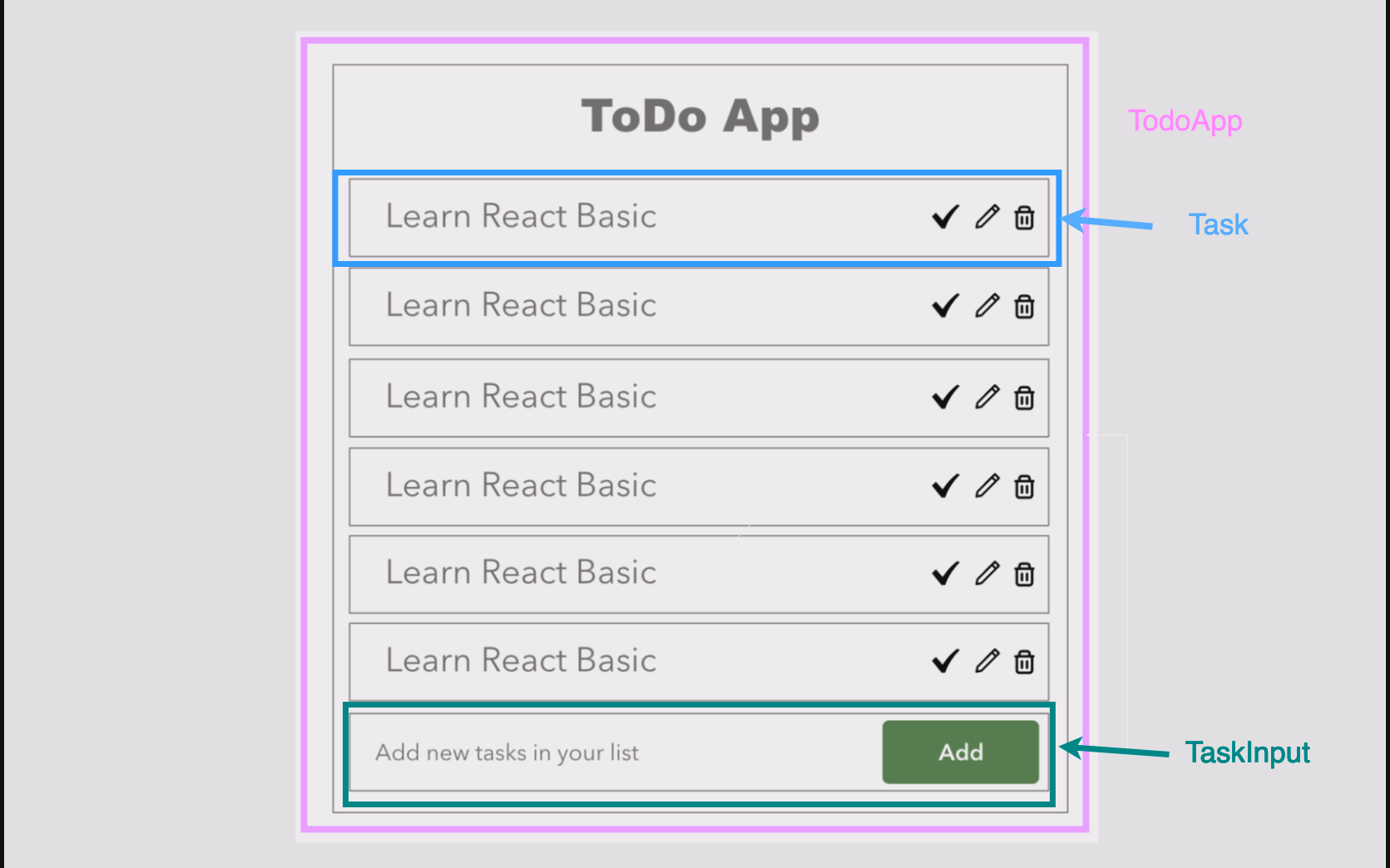
    As for our assignment, we already have the design of what we want to make, here it is

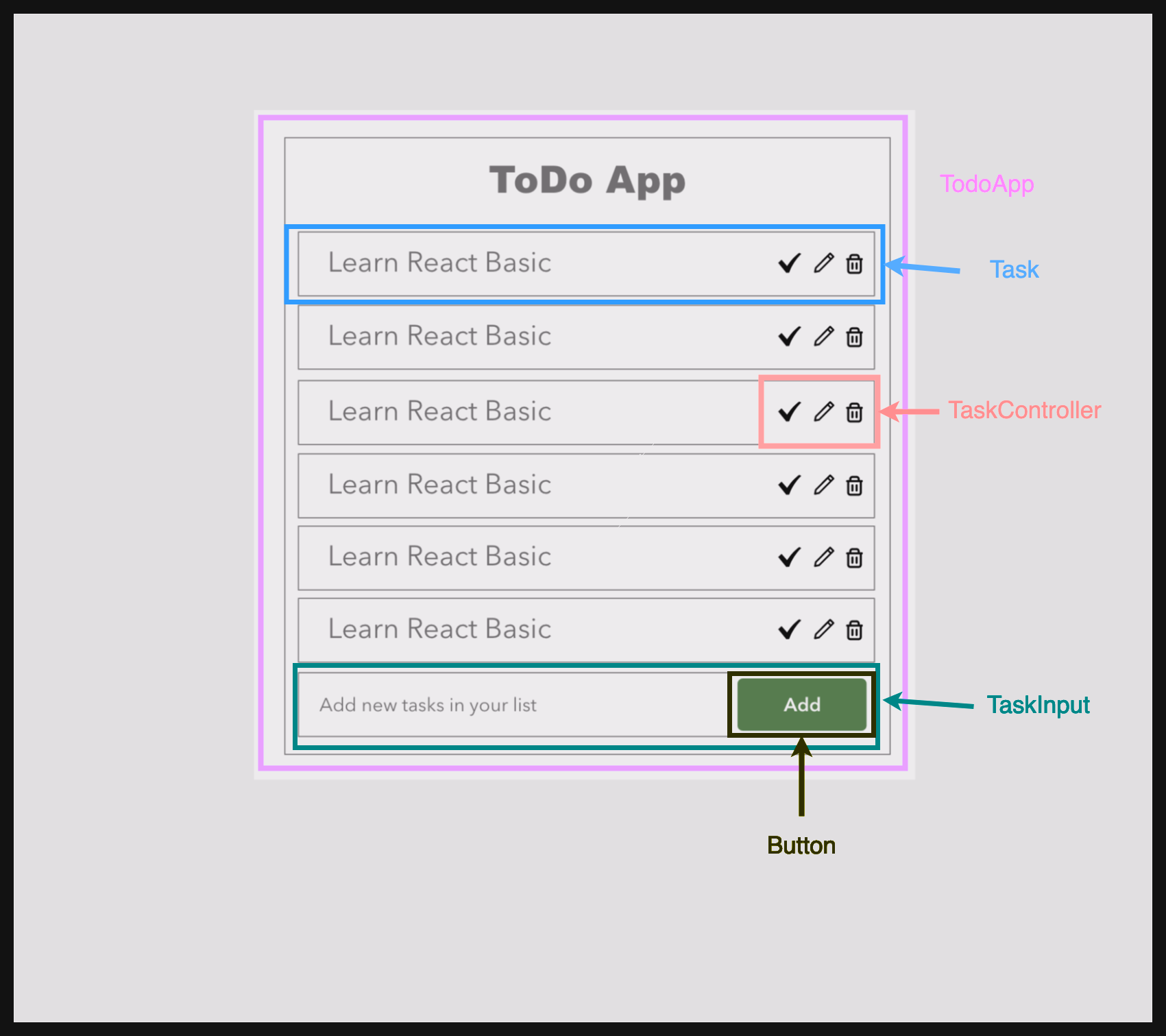
    Next is to find out the components from the design

    We can even break down the components more!!


    We will start working on the actual coding and state design tommorow!

    React Life Cycle

    The react component goes through 3 phases,

    • Mounting
    • Updating
    • Unmounting

    In mounting, the component is being added for the first time, the componentDidMount hook can be used here.

    The render is the most common method, it is compulsory to have in our component, it will render the component.

    componentDidMount is called as soon as the component is mounted and ready, we can use the useState here to update the component

    componentDidUpdate : This method is invoked when the componet updates,

    componentWillUnmount : This method is called just before the component will be unmounted, we can make use of it to cleanup or cancel any api calls.

    The catch here is that all these methods are only available in class components, what about functional components?

    we can use lifecycle methods in functional components with the help of the useEffect() hook.

    useEffect( () => {
    
    }, [])

    the useEffect has two arguments, a callback function and dependency array

    By using this we can create functionality similar to the class component lifecycle methods componentDidMount, componentDidUpdate and componentDidUnmount

    If we pass empty dependency array, it will only be called when component is mounted

    useEffect(() => {
    			console.log("componentDidMount");
    			
    		}, []);
    

    This will only be called once.

    If we want to useEffect for component update, in dependency array we can give the state variable on which change we want to run the hook.

    useEffect(() => {
    			console.log("componentDidUpdate");
    			
    		}, [ctr]);
    

    Event Handling

    Event handling in react is similar to that of html but the names of the event are camelcase

    So, onclick event becomes onClick in react

    <button onClick={handleIncrement}>Increment</button>

    I had created this input field and explicitly put the value of it, after doing that it stopped being editable, why? , if we set the value of the input we must also provide an onChange event handler which will update the input’s value.

    import React, { useState } from "react";
    
    function Task(props) {
      const [task, setTask] = useState(props.value);
      const inputOnChange = (e) => {
        setTask(e.target.value);
      };
      return (
        <>
          <input
            type="text"
            disabled={props.disabled}
            className="list-group-item"
            onChange={inputOnChange}
            value={task}
          ></input>
          <p></p>
        </>
      );
    }
    
    export default Task;


    Conditional Rendering

    We can use conditional to render the components or part of component conditionaly.

    For example, if input field has some error then only we will show the error message else it will be hidden, this can be achieved by code below

    function Task(props) {
      const [task, setTask] = useState({value: props.value});
    	const inputOnChange = (e) => {
    		let newTask = { ...task };
    		newTask.value = e.target.value;
    		if (newTask.value.length < 5) {
    			newTask.error = true;
    		}
        setTask(newTask);
      };
      return (
    	  <>
    		  
          <input
            type="text"
            disabled={props.disabled}
            className="list-group-item"
            onChange={inputOnChange}
            value={task.value}
    		  ></input>
    		{task.error &&  <p>Enter text more than 5 characters</p>  }
        </>
      );
    }


    Here is how the output will look:-

    [googleapps domain=”drive” dir=”file/d/1lNlNL7lzr4hPbsf9R5SBV2bJjLqAq_rG/preview” query=”” width=”640″ height=”480″ /]

    List of references refered today:

    • https://programmingwithmosh.com/javascript/react-lifecycle-methods/
    • https://react.dev/reference/react/useState
    • https://overreacted.io/a-complete-guide-to-useeffect/
    • https://babeljs.io/repl
    • https://react.dev/reference/react/StrictMode#fixing-bugs-found-by-double-rendering-in-development
    • https://projects.wojtekmaj.pl/react-lifecycle-methods-diagram/

  • react and more..

    • Sanitization in JS
    • The Customizer JS API
    • React introduction

    How to sanitize text in js to be used in innerHTML?

    We can use wp-sanitize.js functions to sanitize the strings to be used to append to HTML elements.

    We can use stripTags function to remove tags from the string, and safely update the text of element.

    Example use case of this can be in our customizer.js where we are using postMessage transport for live preview. Instead of directly adding the user input to innerHTML, we can sanitize it first.

    Here is the output of stripTags


    Customizer JS API

    For each object of customizer in php, there is corresponding object in js, and we can use it to change the customizer.

    Here are some things I tried from console

    • Move a control to another section
    • activate/deactivate a section
    • Change order of sections (by changing priority)
    • To focus on a specific section or control
    wp.customize.control('blogname').section('colors'))

    This will move the blogname control into colors section.

    wp.customize.section('colors').deactivate()

    This will hide the colors section.

    wp.customize.section('colors').deactivate({duration : 1000})

    we can even set the time for the animation is shows when hiding the section.

    For reordering the sections, we can change their priority.

    wp.customize.panel('widgets').priority(10);

    This will bring the widgets panel at the top!

    When we use selective refresh, we get a pencil icon on that specific control and when we click it, the control is opened directly in the customizer.

    This is achieved using the focus method, we can try it by focusing a section or panel

    wp.customize.control('blogname').focus()

    React

    React is js library using which we can create user interfaces.

    Components are building blocks in react, that we can use to define a UI element, like an table component. Components can be exchanged data using props.

    Concepts in React :-

    Virtual DOM

    Virtual DOM is virtual representation of the actual DOM, it exists in the memory and used to update the actual DOM

    When we render our react component for the first time, Virtual DOM tree is generated, it is similar to the JSX structure we write for our component.

    When we make changes to the component state or props, re-render is triggered but react does not update the actual DOM, instead it created new virtual DOM and compared it with the old one.

    Then only the changes which are required are updated in the actual DOM

    JSX

    JSX is Javascript XML, it is extension of js that is used with react.

    Using JSX we can write HTML like code for our component

    Setup Dev Environment

    I am using vscode for coding, I have installed prettier, eslint extensions.

    For starting with react, we can use create-react-app that sets up the environment for us and we can get to building the components.

    npx create-react-app todo

    I created this very simple functional component

    function App() {
      return (
       &lt;h1&gt;Hello From Pratik!&lt;/h1&gt;
      );
    }
    
    export default App;


    References I refered Today:-

    • https://create-react-app.dev/
    • https://react.dev/learn/writing-markup-with-jsx
    • https://developer.wordpress.org/themes/customize-api/the-customizer-javascript-api/
    • https://wpseek.com/source/wp/latest/nav.html?wp-includes/js/wp-sanitize.js.source.html
  • day 50

    • Hashing passwords
    • Comments template
    • Compiler vs Transpiler
    • HMR

    How WordPress Stores Passwords?

    WordPress uses hashing and salting to save the passwords in the database, When we enter the password at auth it is again hashed and salted using the same algorithm used before and then compared with the one in DB

    WordPress provides function wp_hash_password(), it takes a string password as input and returns the hashed value.

    $my_pass = 'very-secret-password';
    wp_hash_password( $my_pass );
    

    WordPress has a function to check the password : wp_check_password()

    Loading the comments template

    The function comments_template(); can be used to load the comments template, but where to put the comments.php?

    We can put it anywhere, just have to give the file path as a parameter to the function, by default it will check for comments.php in the theme root.

     comments_template('/template/comments.php');

    Compiler Vs Transpiler

    A compiler is a tool used to translate high-level language code to low-level language code, like from cpp to machine code

    Transpiler translates the code from one high-level language to another high-level language

    So the Babel tool must be a transpiler, then why on the official site do they say it is a compiler and not a transpiler? 🤨


    Setting the Hot Module Replacement in WebPack dev server

    First, in the configuration, we have to enable the HMR or do we?

    The HMR is enabled by default for the latest versions of webpack dev server, but if it is not we can enable using this configuration

    const path = require('path');
    module.exports = {
    	entry: {
    		index: './src/index.js',
    	},
    	devServer: {
    		static: './dist',
    	    hot: true,
    	  },
    	output: {
    		path: path.resolve(__dirname, 'dist') ,
    		filename: '[name].js',
    	},
    
    	mode : 'development',
    	
    }


    then run the server using

     % npx webpack-dev-server --hot

    If it is still reloading and HMR is not working, you may need to put below code at the top of your entry point.

    if (module.hot) {
    	module.hot.accept();
    }
    

    References that I refered to learn today:-


    • https://developer.mozilla.org/en-US/docs/Web/API/Window/postMessage
    • https://www.anthonysteele.co.uk/TheSingleReturnLaw.html
    • https://youmightnotneedjquery.com/
    • https://wordpress.tv/2017/06/22/alain-schlesser-demystifying-the-wordpress-bootstrap-process/

  • Ui, Ux and more

    • HTML Best practises
    • CSS Best Practises
    • BEM

    Semantic Elements

    Semantic elements are used so both browser and developer know their meaning.

    • <article>
    • <aside>
    • <footer>
    • <header>
    • <main>
    • <nav>
    • <section>

    Instead of using generic div containers, we should use these semantic elements for specific purposes

    Like the <header> element can be used for displaying header, it just makes the HTML more readable.

    Don’t place block-level element within inline elements

    &lt;span&gt;
        &lt;p&gt;
        &lt;/p&gt;
    &lt;span&gt;


    Here the <p> is block element which is inside <span> which is inline element, we should not put it this way.

    • The block-level element cannot be nested inside an inline element.
    • The inline element can be nested inside a block-level element.
    • The inline and the block-level element can be nested inside the block-level element.

    BEM (Block Element Modifier)

    This is a standard of naming the css classes, so they are more readable and maintinable.

    In BEM we name classes in this format

    block__element--modifier
    

    We should not use inline style, here are the reasons why.

    • The inline styles have the highest specificity which makes it very hard to change the styles.
    • The inline styles are sent from the HTML itsel, how’s the browser going to cache it.
    • The HTML file will be large if we add the style in the HTML itself.
    • Separation of concerns, HTML is for markup not styles, use .css file instead

    Specificity is something that we should always keep in mind, we should always avoid overly specific selector.


    Selective Refresh

    We can add selective refresh to our widget, when using postMessage, we are writing code in js also in php for rendering the specific control or option, but using selective refresh we can write that in our php code only.

    $wp_customize->selective_refresh->add_partial(
    			'display_navigation',
    			array(
    				'selector'        => '.navigation.post-navigation',
    				'render_callback' => function () {
    
    					if ( get_theme_mod( 'display_navigation' ) ) {
    						the_post_navigation();
    					}
    				},
    			)
    		);
    
    
  • Solving problems and more..

    • Conditional loading of customizer
    • Using relation in widget for querying posts

    The customizer panel, sections and controllers we have created should only be visible when we are customizing the page related to our custom CPTs rt-movie and rt-person.

    This is where the conditionals in wordpress can be used.

    We can check if the current page is a single post or an archive page for a specific post type and if it is then only load the customizer options for our theme. (Basically, early return if the page being customized is not related to a movie or person.)

    $is_movie_page  = is_singular( 'rt-movie' ) || is_post_type_archive( 'rt-movie' );
    		$is_person_page = is_singular( 'rt-person' ) || is_post_type_archive( 'rt-person' );
    
    		if ( ! ( $is_movie_page ||  $is_person_page ) ) {
    			return;
    		}
    

    But, this does not work inside the customize object, it does not have access to the global environment of WordPress site and this always results in false!

    What to do now? well, there is an argument called active callback that we can pass when registering our panel.

    We can use the conditionals there!

    // Add the Panel for Theme.
    		$wp_customize->add_panel(
    			'screen-time',
    			array(
    				'title'    => __( 'Screen Time', 'screen-time' ),
    				'priority' => 10,
    				'active_callback' => array($this, 'active_callback'),
    			)
    		);
    
    /**
    	 * To be active or not to be active.
    	 */
    	function active_callback()  {
    		$is_movie_page  = is_singular( 'rt-movie' ) || is_post_type_archive( 'rt-movie' );
    		$is_person_page = is_singular( 'rt-person' ) || is_post_type_archive( 'rt-person' );
    
    		return $is_movie_page || $is_person_page;
    		
    	}
    

    In our related movies and person widget, we are using a taxonomy as a relation, querying the posts according to that taxonomy to display in the widget.

    For this, we have to first get the name of the taxonomy, and the terms related to that taxonomy and create a tax query for that.

    $query = new \WP_Query(
    			array(
    				'post_type'      => 'rt-movie',
    				'posts_per_page' => $instance['count'],
    				'tax_query'      => array( //phpcs:ignore
    					array(
    						'taxonomy' => $instance['relation'],
    						'field'    => 'slug',
    						'terms'    => $relation_terms,
    					),
    				),
    			)
    		);
    

    The flow to get terms is simple, first, get the id of the current post, then get the terms of that post for the relation chosen in the widget setting.

    Use the terms in the query!

    $current_person_id = get_the_ID();
    		$terms             = get_the_terms( $current_person_id, $instance['relation'] );
    		if ( ! $terms ) {
    			return;
    		}
    		$relation_terms = array_map(
    			function( $term ) {
    				return $term->slug;
    
    			},
    			$terms
    		);


    Webpack

    Webpack is a javascript module that is used to package various modules and dependencies together so they can be loaded efficiently on browsers.

    So, using Webpack we can basically combine all the js files or any other asset files in a bundle.


    References visited today:

    • https://codex.wordpress.org/Theme_Customization_API
    • https://code.tutsplus.com/digging-into-the-theme-customizer-overview–wp-27158t
    • https://webpack.js.org/concepts/
    • http://ottopress.com/2012/how-to-leverage-the-theme-customizer-in-your-own-themes/
  • day 47

    Theme Security

    • Validation
    • Escaping
    • Sanitization
    • Nonces
    Validation

    Validation is checking the input against some rules, an example would be an email address. We want the email address entered to be a valid email, not something gibberish text or numbers.

    The client-side validation I think is for the user to let them know that the info they have input is not valid.

    From a security perspective, the client-side validation can be overridden easily by just sending the data programmatically instead of inputting from a form.

    That is when the server-side validation comes into the picture, server-side validation validates the data after receiving the request and before probably saving it to the database.


    Escaping

    Some characters are not printable because they have special meaning, the escaping is the process of printing those as it is.

    Example a post data stored in the database may have HTML markup, if we directly echo it then the browser will treat it as markup and render it.

    Escaping will change it so that the HTML is printed as it is like a normal string.

    • esc_sql(): Escapes data for use in a MySQL query.
    • ec_url(): Checks and cleans a URL.
    • esc_url_raw(): Sanitizes a URL for database or redirect usage.
    • esc_js(): Escapes text strings for echoing in JS.
    • esc_html(): Escaping for HTML blocks.
    • esc_attr(): Escaping for HTML attributes.
    • esc_textarea(): Escaping for textarea values.
    • esc_xml(): Escaping for XML blocks.

    Sanitizing

    Sanitizing basically means cleaning, sanitizing is used to remove illegal characters from the data.

    As a best practice we should never trust anything the user has entered and should sanitize it.

    Nonces

    Nonce stand for Number used Once

    So it is a number that is used only once, but the wordpress nonces are not true nonces in that sense, they can be used more than once.

    In wordpress, the nonces are valid for up to 24 hours.

    For validating the nonce, they use the tick value, which is used when creating the nonce value.

    $token = wp_get_session_token();
    		$i     = wp_nonce_tick( $action );
    
    		return substr( wp_hash( $i . '|' . $action . '|' . $uid . '|' . $token, 'nonce' ), -12, 10 );
    
    $token = wp_get_session_token();
    		$i     = wp_nonce_tick( $action );
    
    		// Nonce generated 0-12 hours ago.
    		$expected = substr( wp_hash( $i . '|' . $action . '|' . $uid . '|' . $token, 'nonce' ), -12, 10 );
    		if ( hash_equals( $expected, $nonce ) ) {
    			return 1;
    		}
    
    		// Nonce generated 12-24 hours ago.
    		$expected = substr( wp_hash( ( $i - 1 ) . '|' . $action . '|' . $uid . '|' . $token, 'nonce' ), -12, 10 );
    		if ( hash_equals( $expected, $nonce ) ) {
    			return 2;


    The DAY_IN_SECONDS value is used for nonce expiration, which is 86400 seconds.

    The formular used to calculate the tick number is:

     ceil( time() / ( $nonce_life / 2 ) );

    So, if current time (POSIX) is 1694632761 then

    $tick = ceil (1694632761 / (86400/2));

    which results in :- 39228