Category: Uncategorized

  • day 62

    Full Site Editing (FSE)

    Full Site Editing in WordPress allows us to edit our whole site and make it very different than the template we started with, the changes we make are stored in the database so even if new theme is installed, we can reuse the template parts and patterns we created.

    The Site Editor

    When a block theme is installed, the site editor is enabled and can be accessed from the admin dashboard, this works similar to the customizer API for Classic Themes but has many advance features.

    Template Editing

    We can edit each individual templates from the site editor, add new templates and assign them to post or pages. It is not advised to directly modify the templates provided my themes and to create new ones so changes will not be erased when theme is updated.

    This is how the editor navigation looks like!

    This new features changes how the WordPress themes are created, we can create a whole new theme only from the editor and serve it to users and they can modify it accordingly.

    The content writing and publishing experience can be improved with this.

    Creating Block Theme

    The directory structure of a Block Theme is slightly different from the classic theme, the main differences are

    • In class theme we can put our templates anywhere and access them, in block theme we have to put then under directory templates
    • The .php template files in classic theme are replaced with .html templates
    • The template parts need to reside in parts directory

    Let’ create a simple block theme!

    The main requirements for getting started with block themes are the style.css and index.html file

    style.css

    /*
    Theme Name: Block Theme
    Description: Basic block theme created from scratch
    Author: Pratik Londhe
    License: GNU General Public License v2 or later
    License URI: http://www.gnu.org/licenses/gpl-2.0.html
    Text Domain: block-theme
    Version: 1.0
    */


    The style.css we write here is same as the one for the classic theme, with header information

    index.html

    <!-- wp:template-part {"slug":"header","theme":"block-theme","tagName":"header","className":"site-header"} /-->


    <!-- wp:template-part {"slug":"footer","theme":"block-theme","tagName":"footer","className":"site-footer"} /-->

    This currently only includes the header and footer template parts.

    Your directory structure should be like this,

    patterns (dir)
          - example.php
    parts (dir)
          - footer.html
          - header.html
    templates(dir)
          - index.html (required)
    functions.php
    style.css (required)
    theme.json

    theme.json file

    The theme.json file is very powerful and can be used to change the styles and settings of block editors, individual blocks.

    The basic theme.json may contains color pallete by the theme and some settings to add block supports like border etc.

    We don’t have to enqueue the theme.json file, just create it and add in the root directory of the theme and WordPress will take care of the rest, the styles we define in theme.json are converted into CSS on the fly and are applied globally to the blocks.

    Here is example of my theme.json file

    {
    	"$schema": "https://raw.githubusercontent.com/WordPress/gutenberg/trunk/schemas/json/theme.json",
    	"version": 2,
    	"settings": {
    		"color": {
    			"defaultPalette": false,
    			"palette": [
    				{
    					"color": "#007acc",
    					"name": "primary",
    					"slug": "primary"
    				},
    				{
    					"color": "#ff9900",
    					"name": "secondary",
    					"slug": "secondary"
    				},
    				{
    					"color": "#333333",
    					"name": "text",
    					"slug": "text"
    				},
    				{
    					"color": "#f5f5f5",
    					"name": "background",
    					"slug": "background"
    				},
    				{
    					"color": "#007acc",
    					"name": "link",
    					"slug": "link"
    				}
    			]
    		},
    		"spacing": {
    			"blockGap": true
    		}
    	}
    }


    • Core Web Vitals

    What are Core Web Vitals

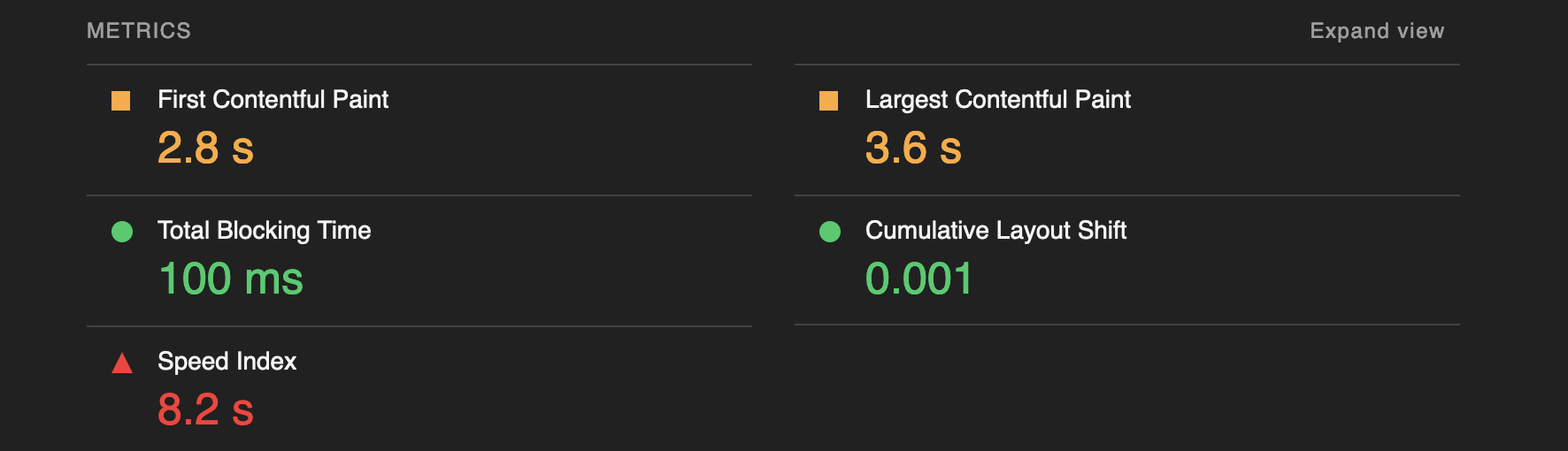
    Core Web Vitals are metrics used to measure real-world user experience for loading performance, interactivity, and visual stability of the page.
    The Core Web Vitals Include metrics like

    • LCP: Largest Contentful Pain.
    • FID: First Interaction Delay.
    • CLS: Cummulative Layout shift

    We can use tool lighthouse to measure this things

    • Install the npm CLI tool Lighthouse
    npm install -g lighthouse
    • Run it to test for your site url
    lighthouse https://pratiklondhe.dev/ --view

    we are using –view so the HTML report is opened immediately


    SEO (Search Engine Optimization)

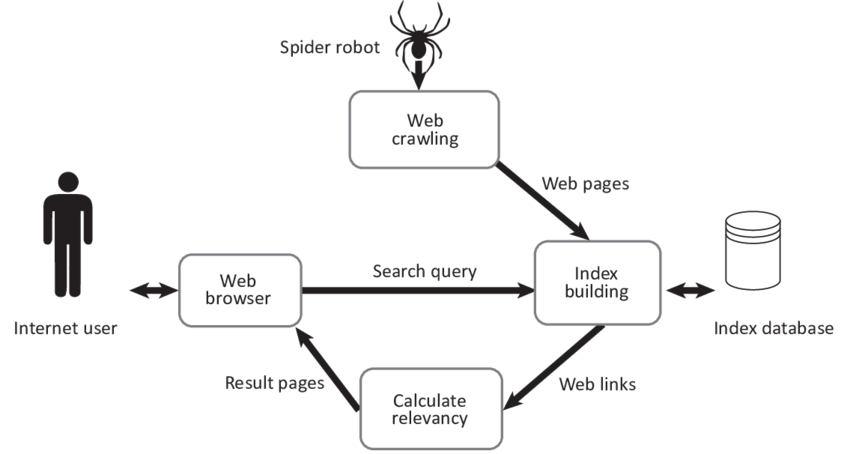
    The Google search engine uses index to store info about the sites on the internet so that when user searches something the results can be served.

    Many sites get added everyday, for this to work Google uses crawlers to access the content of the site and analyses it to store in the index.

    Key Concepts in SEO

    • Index – Google stores the pages that it knows in a database known as an index.
    • Crawl – It is a process of going through the site to get information and data about the site.
    • Crawler – It is an automated software used for Crawling
    • Googlebot – Name of the Google Crawler
    • SEO – Search engine optimization: the process of making your site better for search engines.

    structured data or schema

    We can define a structured markup for our web page to let the Search Engines know about the type of content we are serving like News, Article, Recipe, Music, Movie, Video, etc.

    We can do that using 2 formats

    • JSON-LD
    • MicroData

    The JSON-LD format (JSON for Linking Data) is a method of encoding linked data using JSON, as it is based on JSON which is human readable and also serializable.

      <script type="application/ld+json">
        {
          "@context": "https://schema.org",
          "@type": "NewsArticle",
          "headline": "Title of a News Article",
          "image": [
            "https://example.com/photos/1x1/photo.jpg",
            "https://example.com/photos/4x3/photo.jpg",
            "https://example.com/photos/16x9/photo.jpg"
           ],
          "datePublished": "2015-02-05T08:00:00+08:00",
          "dateModified": "2015-02-05T09:20:00+08:00",
          "author": [{
              "@type": "Person",
              "name": "Jane Doe",
              "url": "https://example.com/profile/janedoe123"
            },{
              "@type": "Person",
              "name": "John Doe",
              "url": "https://example.com/profile/johndoe123"
          }]
        }
        </script>


    The MicroData format is less popular, it uses the HTML tags and attributes to define the structure for the document

     <div itemscope itemtype="https://schema.org/NewsArticle">
          <div itemprop="headline">Title of News Article</div>
          <meta itemprop="image" content="https://example.com/photos/1x1/photo.jpg" />
          <meta itemprop="image" content="https://example.com/photos/4x3/photo.jpg" />
          <img itemprop="image" src="https://example.com/photos/16x9/photo.jpg" />
          <div>
            <span itemprop="datePublished" content="2015-02-05T08:00:00+08:00">
              February 5, 2015 at 8:00am
            </span>
            (last modified
            <span itemprop="dateModified" content="2015-02-05T09:20:00+08:00">
              February 5, 2015 at 9:20am
            </span>
            )
          </div>
          <div>


    To valiadate this data we can use following applications

    • https://developers.google.com/search/docs/appearance/structured-data
    • https://validator.schema.org/
  • day 60

    • Inner Blocks and parent
    • SlotFills

    The Inner Blocks component can be used to add one or more inner blocks inside a block.

    But, it will only allow to add one Instance of the Inner Blocks per block, so if we have to add multiple inner blocks or even create a layout using inner blocks, we have to code multiple components and use them.

    registerBlockType(metadata.name, {
    	edit: () => {
    		return (
    			<div {...useBlockProps()}>
    				<InnerBlocks />
    			</div>
    		);
    	},
    	save: () => null,
    });
    

    In the save function, we can use the content component to render the inner blocks.

    registerBlockType(metadata.name, {
    	edit: () => {
    		return (
    			<div {...useBlockProps()}>
    				<InnerBlocks />
    			</div>
    		);
    	},
    	save: () => {
    		return (
    			<div {...useBlockProps.save()}>
    				<InnerBlocks.Content />
    			</div>
    		);
    	}
    });


    Now, we want to create layout that allows use of multiple, for that we can create more elements and add them as children to our block.

    slotFills

    Slot Fills are part of Block Editor system that offer a way to extend and customize the editor’s interface by adding our own content or controls to the various slots (positions) within a block where we can insert additional components/content

    Slot and Fill are a pair of components which enable developers to render elsewhere in a React element tree, a pattern often referred to as “portal” rendering. It is a pattern for component extensibility, where a single Slot may be occupied by an indeterminate number of Fills elsewhere in the application.Ryan Welcher – Extending Gutenberg With SlotFill and Filters

    <SlotFillProvider>
    <div >
    	<Slot name="setting-top">
    	<div className="setting-item">
    	</div>
    	<div className="setting-item">
    		// Existing setting in main plugin
    	</div>
    	<Slot name="setting-bottom">
    </div>
    </SlotFillProvider>
    

    Contributing to Core

    WordPress is open source, means it is maintained by people around the world, many people contribute their time and resources to make WordPress better and we can too.

    There are multiple ways to contribute to WordPress core

    • Code contributions :
      • We can work on the tickets in the WordPress trac (the software used for issue tracking in WordPress), and contribute our code to fix bugs or add new features
    • Reporting Bugs:
      • If we don’t have capacity to work on the code, we can report the bugs that we encounter, which in turn helps to make the WordPress better and better.
    • Contributing Documentation
      • We can update the documentation of newly added features or create examples for functions hooks etc

    The WordPress uses SVN as version control, which is a centralized VCS contrary to the GitHub that we are familiar with, but we don’t have to be very good at SVN to contribute code in the core, we can use the existing git/GitHub and create diff files to open new ticket.

    Steps:-

    • Clone the master branch from the github repo
    • Create new feature branch and work on the issue
    • Generate a diff file using the git diff command
    • Upload that diff file with relevant information to the https://core.trac.wordpress.org/

    The good first bugs section has bugs that are for new contributors, so we can work on them.

    https://core.trac.wordpress.org/tickets/good-first-bugs

  • day 59

    • Theme support
    • Porting metaboxes
    • Notices

    By default block provide their styles to the themes, without any change. Themes can also override the block styles, or not provide any styles and rely on the block styles.

    Here are the theme support for blocks

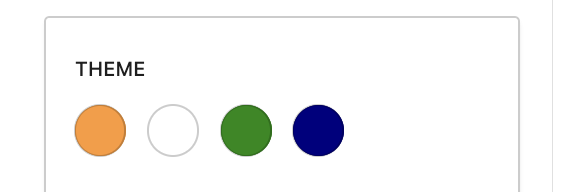
    • Editor Color Palette – A default set of colors is provided, but themes can register their own and optionally lock users into picking from the defined palette.
    • Editor Text Size Palette – A default set of sizes is provided, but themes can register their own and optionally lock users into picking from preselected sizes.
    • Responsive Embeds – Themes must opt-in to responsive embeds.
    • Frontend & Editor Styles – To get the most out of blocks, theme authors will want to make sure Core styles look good and opt-in, or write their own styles to best fit their theme.
    • Block Tools – Themes can opt-in to several block tools like line height, custom units.
    • Core Block Patterns – Themes can opt-out of the default block patterns.

    We can use the function add_theme_support to opt in for this features

    add_theme_support('editor-color-palette', array(
    		array(
    			'name'  => esc_attr__( 'Saffron', 'screen-time' ),
    			'slug'  => 'saffron',
    			'color' => '#FF9933',
    		),
    		array(
    			'name'  => esc_attr__( 'White', 'screen-time' ),
    			'slug'  => 'white',
    			'color' => '#FFFFFF',
    		),
    		array(
    			'name'  => esc_attr__( 'Green', 'screen-time' ),
    			'slug'  => 'green',
    			'color' => '#138808',
    		),
    		array(
    			'name'  => esc_attr__( 'Navy Blue', 'screen-time' ),
    			'slug'  => 'navy-blue',
    			'color' => '#000080',
    		),
    	));
    

    Theme.json file:-

    Theme.json file contains style configuration for theme styles and blocks

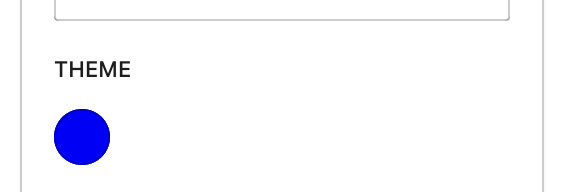
    The same thing we added above can be achieved by adding the styles into the theme.json files, and it is very convenient to do so.

    All the style settings in theme.json get converted into css.

    {
        "version": 2,
        "settings": {
                "blocks": {
                    "core/paragraph": {
                        "color": {
                            "palette": [
                                {
                                    "name": "Blue",
                                    "slug": "blue",
                                    "color": "#0000FF"
                                }
                            ]
                        }
                    }
                }
            }
        }        


    the theme.json file is written in JSON: JavaScript Object Notation

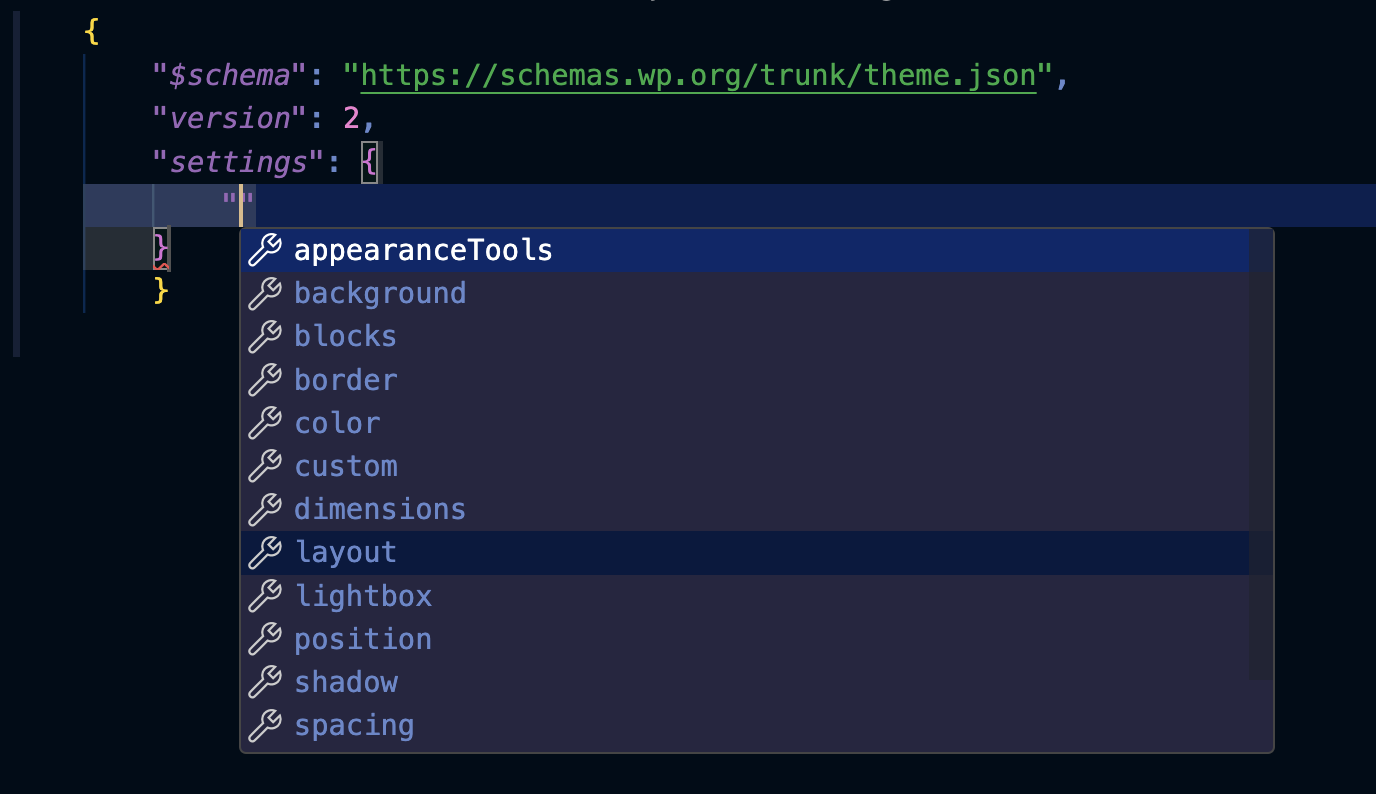
    We can also use the schema provided by WordPress so in editor we get suggestions, to do this first get the schema from here

    https://developer.wordpress.org/block-editor/how-to-guides/themes/theme-json/

    We can use the key $schema for this

    This really makes it easier and we don’t have to remember each and every setting in it .


    Porting MetaBoxes

    We can actually add metaboxes blocks in out posts, and save the metadata without any custom coding in the PHP (except for registering the meta)

    First, in our plugin file, we have to register the meta field for that we can use the function register_post_meta

    add_action( 'init', function () {
    	register_post_meta( 'post', 'myfirst_meta_val', array(
            'show_in_rest' =&gt; true,
            'single' =&gt; true,
            'type' =&gt; 'string',
        ) );
    });
    

    Then, create a new block and register it also,

    add_action('init', function () {
    register_block_type(__DIR__ . '/blocks/build/myfirst');});

    In our Index.js of block, we have to use the useEntityProp hook to CRUD the meta values, here is the full code

    registerBlockType('myfirst/meta-block', {
    	title: 'My First Meta Block',
    	edit: () =&gt; {
    		const postType = useSelect(
    			(select) =&gt; select('core/editor').getCurrentPostType(),
    			[]
    		);
    
    		const [meta, setMeta] = useEntityProp('postType', postType, 'meta');
    
    		const metaFieldValue = meta.myfirst_meta_val;
    		const updateMetaValue = (newValue) =&gt; {
    			setMeta({ ...meta, myfirst_meta_val: newValue });
    		};
    
    		return (
    			&lt;div {...useBlockProps()}&gt;
    				&lt;TextControl
    					label="Meta Block Field"
    					value={metaFieldValue}
    					onChange={updateMetaValue}
    				/&gt;
    			&lt;/div&gt;
    		);
    	},
    });
    

    This might look little big at first, but it is very simple, first we are getting the current post type as it is required to query the postmeta and save the values.

    Then we are using the hook useEntityProps to get the meta values of that post

    And using TextControl with event handlers we are adding that post meta, here it is how it looks


    Notices

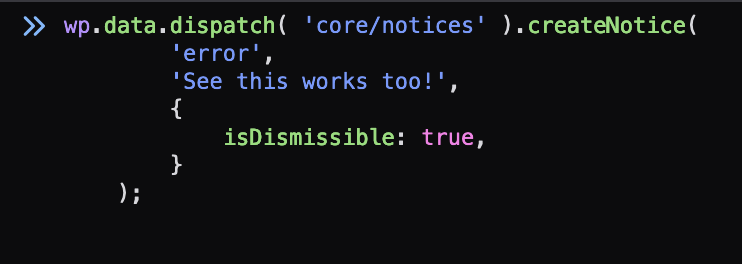
    Notices serve as informative user interface elements that appear at the top of admin pages. They are used by WordPress core, themes, and plugins to communicate the outcome of an action or to highlight important information to the user.

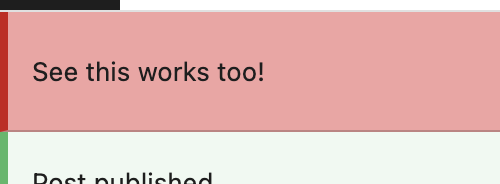
    Everything in the block editor context is just simple, to add a notice to the block editor we can use the function createNotice

    wp.data.dispatch( 'core/notices' ).createNotice(
            'error', 
            'See this works too!', 
            {
                isDismissible: true, 
            }
        );
    

    The notices can be of type success, info, warning, error.

    The isDismissible attribute sets if the notice should be dismissible or not.


  • day 58…

    • Accessing post meta
    • useSelect

    When we add any dynamic blocks, we need to use meta data related to the post to display in the block, like for a movie its runtime, release date are all metadatas

    How to access them in the WordPress blocks, when it comes to the PHP render callback that we use the API is pretty strightforward and easy to use inside the query loop to get the metadata.

    For the use in blocks Edit function, we can use the data store of the WP using the useSelect hook, from that we can get the post data but how to get the meta, for that we can use the useEntityProp hook

    const [meta, updateMeta] = useEntityProp(
    		'postType',
    		'rt-movie',
    		'meta',
    		movie.id
    	);
    

    Then we can access the meta data one by one

    const releaseDate = meta['rt-movie-meta-basic-release-date'];
    	const director = PersonPosts(meta['rt-movie-meta-crew-director']);
    	const actors = PersonPosts(meta['rt-movie-meta-crew-actor']);
    	const runtime = meta['rt-movie-meta-basic-runtime'];
    

    I have created this simple function that parses the metadata and gets the posts for us

    const PersonPosts = (metaValue) => {
    	const metaArr = JSON.parse(metaValue);
    
    	const posts = useSelect((select) =>
    		select('core').getEntityRecords('postType', 'rt-person', {
    			include: metaArr,
    		})
    	);
    	return posts;
    };
    

    removeEditorPanel :

    The function provides a way to remove a editor panel, it can be useful when in our theme or plugin we want to override some functionality and remove existing panels.

    ```js
    await wp.data.dispatch('core/edit-post').removeEditorPanel('post-excerpt');
    ```

    We can customize the editing experience for the clients, maybe even apply some authorization on the editing experience.


    IF our blocks are not fully dependent on the server side, we don’t have to register them in the block registry of the server, we can register them only on the front end and make them work.

    registerBlockType('mlb/myfirst', {
    	title: "My First Block",
    	category: 'text',
    	icon : 'smiley',
    	edit: Edit,
    	save: Save,
    });
    

    Dynamic Blocks and the attributes!!!

    I encountered an issue while creating dynamic blocks. The save function was returning null, and the block render callback was defined in PHP. How are the attributes stored?

    I was trying to give the attributes types like number, boolean, etc., but no matter what, in the editor, they won’t work because the save function was not there.

    The attributes are getting stored in the database post, but when rendering in the block editor, their types change. In the DB, they are stored as a string, but we have defined them as different types in our block.json.

    To fix it, we can just change their type to string.

    "attributes": {
    		"count": {
    			"type": "string",
    			"default": 5
    		},
    		"director": {
    			"type": "string"
    		},
    		"genre": {
    			"type": "string"
    		},
    		"label": {
    			"type": "string"
    		},
    		"language": {
    			"type": "string"
    		}
    	},
    
  • day 57

    • Nested blocks, inner blocks

    Nested blocks is an approach in which we can create blocks that can hold other blocks inside them, this way we can create some complex UI structures.

    The blocks residing under a parent block are known as inner blocks, it is super easy to add InnerBlocks in WordPress, they provide an component InnerBlocks in the package @wordpress/block-editor that can be used to add inner blocks.

    import { useBlockProps, InnerBlocks } from '@wordpress/block-editor';
    
    const Edit = () => {
    	const blockProps = useBlockProps();
    	return (
    		<>
    			<h1 {...blockProps}>Hello from here!</h1>
    			<InnerBlocks allowedBlocks={['core/heading', 'core/image']} />
    		</>
    	);
    };
    
    export default Edit;
    
    import { InnerBlocks } from '@wordpress/block-editor';
    
    const Save = () => {
    	return (
    		&lt;>
    			&lt;h1> Hello from here!&lt;/h1>;
    			&lt;InnerBlocks.Content />
    		&lt;/>
    	);
    };
    
    export default Save;


    We will be updating our blocks edit and save scripts to add the inner blocks

    The InnerBlocks component takes allowedBlocks as props where we can provide an array of block allowed to be inserted in our inner blocks position.

    This gives a way to create flexible layouts, add optional blocks and display them on frontend!


    Do we have to manually enqueue the scripts for our block?

    The block.json file contains metadata about our block, it also contains values for the scripts and styles files.

    We don’t have to enqueue them as when we call the wp_register_block_type() function, they are enqueued in that.

    I could not find any direct reference to the functions like wp_enqueue_scripts() or wp_enqueue_styles() inside the definition of register_block_type() function but it does parse the json metadata of block and created handles for the scripts and styles

    I will have to look through more to get how it is done, but I am sure the scripts and styles are getting loaded automatically.

    What about i18n ? , for JS use the package wpi18n provides similar functions like __() to make the static string translatable, but the actual translation it takes from the server so for this to work we will have to load the text domain of our plugin and add the i18n in the scripts files.


    how does the WordPress parses our block.json?

    As we are using JSON format, WordPress has inbuilt function wp_json_file_decode that is used to get our metadata from block.json file, then the properties are mapped with a predefined associative array, similar to like the parse args,

    A loop runs that registers the scripts and styles using the functions register_block_script_handle and register_block_style_handle

    Also, if our block is supposed to be dynamic then we also have to provide a callback to render the the block, that is registered in the function.

    The Settings array holds all the details about our blocks.


    Useful hooks in the @wordpress/block-editor

    useBlockEditingMode

    Allows a block to restrict the user interface that is displayed for editing that block and its inner blocks.

    useBlockProps

    const blockProps = useBlockProps();
    	
    	return (
    		<>
    			<h1 {...blockProps}>Hello from here!</h1>
    		</>
    	);
    };
    

    This is very important, using it we can mark our element as block so that it gets similar styling, block editing experience as the other blocks

    useSetting

    Hook that retrieves the given setting for the block instance in use.


  • day 56

    @wordpress/element

    The element package provides an abstraction layer over react, we can use it the same way we use react but it is specifically for WordPress.

    It has similar API just like react,

    The edit and save functions:-

    var registerBlockType = wp.blocks.registerBlockType;
    
    registerBlockType('mlb/myfirst', {
    	edit: function () {
    		return "edit";
    
    	},
    	save: function () {
    		return "save";
    	}
    });
    

    The edit function should return a react element that will be displayed on the editor

    The save function should return a react element that will be displayed on the front-end

    Dynamic Blocks

    Dynamic blocks are blocks that build their structure and content on the fly when the block is rendered on the front end.

    The dynamic blocks save functions returns null so that only the block attributes are stored in the database, the backend callback handles the actual rendering of the data.

    We can give the render callback when registering the block

    register_block_type(
        __DIR__ . '/notice',
        array(
            'render_callback' => 'render_block_core_notice',
        )
    );


    Properties that can be added to block.json file for adding block metadata

    API Version : The version of the Block API used by the block. The most recent version is 3 and it was introduced in WordPress 6.3.

    Name

    { "name": "mlb/myblock" }

    The name for a block is a unique string that identifies a block. Names have to be structured as namespace/block-name, where namespace is the name of your plugin or theme.

    Title:

    Title of the block, this will be displayed in the editor

    { "title": "Movies" }

    Category:

    This describes in which category the block belongs to, below are in built categories

    • text
    • media
    • design
    • widgets
    • theme
    • embed
    { "category": "text" }

    Icon

    An icon property should be specified to make it easier to identify a block. These can be any of WordPress’ Dashicons (slug serving also as a fallback in non-js contexts).

    { "icon": "video" }
    
    block attributes

    Block attributes provide information about the data stored by a block. For example, rich content, a list of image URLs, a background colour, or a button title.

    A block can contain any number of attributes, and these are specified by the attributes field – an object where each key is the name of the attribute, and the value is the attribute definition.

    The edit function of our block is passed those attributes which we can access and use to render the block, for example:-

    registerBlockType('mlb/myfirst', {
    	edit: function ({attributes }) {
    		return "edit : " + attributes.title;
    
    	},
    	save: function () {
    		return "save";
    	}
    });
    

    how to use styles and stylesheets?

    We can add inline style to the block edit function directly, but we will have to repeat the same for save function also!

    The better approach to this is to enqueue the styles and also use the class names in our blocks, to enqueue the style sheet we can add it in the block.json file.

    Use the editorStyle property to a CSS file you want to load in the editor view, and use the style property for a CSS file you want to load on the frontend when the block is used.

    {
        "editorStyle": "file:./editor.css",
        "style": "file:./style.css"
    }


    Block Supports

    Block supports can be added in the block.json file, there are a lot of inbuilt core customizations that our block can opt in for, we can use them.

    "supports": {
            "color": {
                "text": true,
                "background": true,
            }
        }
    

    This will add support for text color, background color etc.

    This is really helpful when we want to offer this customization in our block but don’t want to duplicate the code used for this.


  • blocks in WordPress

    • What is a Block ?

    In the new Gutenberg editor of WordPress, the blocks are units by using which a webpage is created.

    Everything from a paragraph, to a video, to the site title is represented as a block.

    If we look at how the posts are stored by opening the html of this page,

    This is how it looks, but when rendered it looks very different than this!,

    The HTML comments are used to parse the block and display the actual HTML, but to store this in database they are serialized like this.

    Let’s take example of the paragraph block, it is written as

    <!-- wp:paragraph -->
    <p> Something something </p>
    <!-- /wp:paragraph -->

    This is the serialized version of the paragraph to be stored in the database, but for it to render in the editor, we convert it into an array of objects which is stored in the memory.

    Each block has edit function, that will return the component related to that block so it can be displayed.

    • How to create a block?

    To create a block, we have to follow some steps:-

    • We have to first create a plugin which will be responsible for adding the blocks.
    • Add block.json for describing the block and its metadata
    • Add a block.js to render the react component

    For this, I have created blocks directory in my plugin and added myfirst block in it.

    I am using api version 3, which is the latest version since WP:6.3 , read more about block version from here : https://developer.wordpress.org/block-editor/reference-guides/block-api/block-api-versions/

    The name attribute must be prefixed, I am using mlb prefix for this, if you look at core blocks they are prefixed as core/

    Category is the category of the block, we can select from available categories like, text , media , design, embeds etc.

    The editorScripts requires a script file that will be loaded whenever we load our block in the editor, I have her created a block.js file

    We can use the function

     register_block_type( __DIR__ . '/blocks/myfirst' );
    

    To let the WordPress know about our block.

    This will also enqueue the script block.js we created, but for that to work we have to create a file block.asset.php and return the dependency of wp-blocks

    var registerBlockType = wp.blocks.registerBlockType;
    
    registerBlockType('mlb/myfirst', {
    	edit: function () {
    		return "edit";
    
    	},
    	save: function () {
    		return "save";
    	}
    });
    
    <?php
    return array(
    	"dependencies" => array('wp-blocks'),
    	"version" => "1.0",
    );
    

    Now, we can check in the block editor, if our block is showing or not.


    We have created our first block, but we are still using ES5 Js. For this to be according to WP docs, we have to setup environment accordingly.


    Why we should not use index as key in react:-

    Using index in key value can cause unexpected behavior, In my todo app I was using index as key and adding new tasks at index 0.

    Due to this, newly added tasks always had key = 0 , which caused bugs when trying to edit them, the value of previous task was being shows as react did not re render the component due to same key value.

    tasks.map((task, i) =&gt; (
                  &lt;li className="list-group-item" key={i}&gt;
                    &lt;Task task={task} onDelete={deleteTask} onEdit={editTask} /&gt;
                  &lt;/li&gt;
                ))
    

    To fix this issue, I used the id of the task itself as key!


    Links I referred today

    • https://wordpress.org/documentation/article/blocks-list/
    • https://developer.wordpress.org/block-editor/explanations/architecture/data-flow/
    • https://developer.wordpress.org/block-editor/how-to-guides/block-tutorial/writing-your-first-block-type/
  • day 54

    • Context
    • local storage

    Context API:

    When writing react application, we have to send data through props from one component to another, this is totally fine.

    But sometimes there might be a data that needs to be accessed by all or many components, this might lead to problem of prop drilling

    Prop drilling occurs when you need to pass down data through multiple nested components to reach the ones that require the data.

    This would lead to components being tightly coupled with each other, to avoid this we use context.

    how it works?

    We need to use createContext() to create a new context.

    It returns an object with a consumer and provider

     const MyContext = createContext({});
     console.log(MyContext);

    The Provider component provides the state and the Consumer uses it.

    Let’s make all our tasks available through context


    First, let’s create a context and export it so we can use it in other component,

    export const TaskContext = createContext([]);

    Now, in our ToDo app we can use the provider component of TaskContext.provider and declare which values to put into context

        &lt;TaskContext.Provider value={{ tasks, setTasks }}&gt;
                    &lt;Task task={task} onDelete={deleteTask} onEdit={editTask} /&gt;
        &lt;/TaskContext.Provider&gt;


    In the Task component, we have to use the useContext hook to get the values,

    const { tasks } = useContext(TaskContext);

    Nice, now the tasks are available to the task components also, thought this was unnecessarily and overkill for this.

    This is the output!


    LocalStorage

    We can use local storage to store data on client side

    Local storage is our browser storage in which we can store data as key value pairs without any expiration time.

    React provides built in object localStorage for strightforward usage of it, to store a data we have to call setItem()

    localStorage.setItem('tasks' , tasks);

    To retrieve the data we can use getItem

    const tasks = localStorage.getItem('tasks');

    To remove the data we can use removeItem()

    localStorage.removeItem('tasks');

    We can use it in our react component like given below

     useEffect(() => {
        const localTasks = localStorage?.getItem("tasks");
        if (!localTasks) {
          return;
        }
        const parsedTasks = JSON.parse(localTasks);
        setTasks(parsedTasks);
      }, []);
    
      useEffect(() => {
        localStorage.setItem("tasks", JSON.stringify(tasks));
      }, [tasks]);


    Things to keep in mind when using local storage

    • We should not store sensitive data in the localStorage, it is insecure
    • Always handle cases when the data is not available in the browser
    • Local storage has limited capacity

  • day 53

    • useCallback and useMemo
    • Lifting State Up
    • State of our ToDo
    • UI Components

    useCallback

    useCallback hook that is used ti memoize a callback function to prevent it from being recreated on each render.

    React components are re-rendered when the state or props change.

    const myFunc = useCallback(callbackFunction , [deps])

    The useCallback second argument dependencies is crucial, it specifies when the memoized function should be recreated.

    If any of the dependency in the array changes between the renders the memoized function will be recreated, otherwise the previous will be used.


    useMemo

    React components re-render when the props or state is changes, this is expected but it can also recreate some complex calculations that are not required and lead to performance issues.

    useMemo is a hook that memoizes the result of a function or computation, It has two arguments

    const myVal = useMemo(() => complexCalc(v) , []);

    First one is the function that computes a value and then the array of dependencies

    Best Practises:-

    • First profle the application, is it worth adding the memoization?
    • Don’t over use the memoization, only use it for values that are actually expensive to calculate.
    • Make sure that the dependencies provided are the actual ones you are using, don’t lie about dependencies.

    Lifting State Up

    The process of lifting a component’s state to the common ancestor so that other cousin components can use it is known as Lifting State Up.

    Components are designed to be modular and reusable, but there can be situations where multipel components may need to access same data.

    Lifting state up is a react pattern that involves moving shared state from child components to a common ancesstor

    In my app, the task controller and task component were using the same state, so I create a new parent component as todo and passed the state to them as props

    const ToDo = ({ heading }) => {
    	const [todoList, setTodoList] = useState([]);
    	return (
    		<div className="d-grid justify-content-center vh-100 align-items-center">
    			<h1>{heading}</h1>
    			<div className="list-group">
    				{todoList.map((task, i) => (
    					<Task key={i} task={task} onDelete={removeTask} />
    				))}
    			</div>
    			<TaskInput onAdd={addNewTask} />
    		</div>
    	);
    };
    

    State of our ToDo

    So, I decided to use 3 attributes of our task id,name and done

    {
     "id" : 0,
     "name" : "complete this asap",
     "done" : false
    }

    And create an array to store all the tasks.

    We can use cookie db to store the tasks and fetch them again when use refreshes the page, currently the tasks are also refreshed so we have to work on that.

    [googleapps domain=”drive” dir=”file/d/1TxsQIEEK-UhWOWY620s_cDb-6wqQsYiN/preview” query=”” width=”640″ height=”480″ /]

    Links refered today:

    • https://dmitripavlutin.com/react-usecallback/
    • https://dmitripavlutin.com/react-usememo-hook/
    • https://blog.jakoblind.no/css-modules-webpack/
    • https://overreacted.io/before-you-memo/